In-Market Beta Deployment
App Installation, Setup & User Guide
Dec 28, 2025 – Ouro Staff
Dec 28, 2025 – Ouro Staff
Overview
Ouro CD uses a system of QR codes and a mobile application to provide tracking data for certified destruction waste, giving visibility into chain of custody information that can be used to empower a variety of business goals.
This page describes the process of using the OuroCD application to record the destruction process of a product destruction order. Images are attached to help know where you are in the process & how to complete the transactions.
Overview
Ouro CD uses a system of QR codes and a mobile application to provide tracking data for certified destruction waste, giving visibility into chain of custody information that can be used to empower a variety of business goals.
This page describes the process of using the OuroCD application to record the destruction process of a product destruction order. Images are attached to help know where you are in the process & how to complete the transactions.
Getting the app
In order to get Ouro Certify App, download from either this link:
https://apps.apple.com/us/app/ouro-cd/id6754770454
https://play.google.com/store/apps/details?id=com.eholmdahl.App
Or scan one of the QR Codes below to access it.
Getting the app
In order to get Ouro Certify App, download from either this link:
https://apps.apple.com/us/app/ouro-cd/id6754770454
https://play.google.com/store/apps/details?id=com.eholmdahl.App
Or scan one of the QR Codes below to access it.
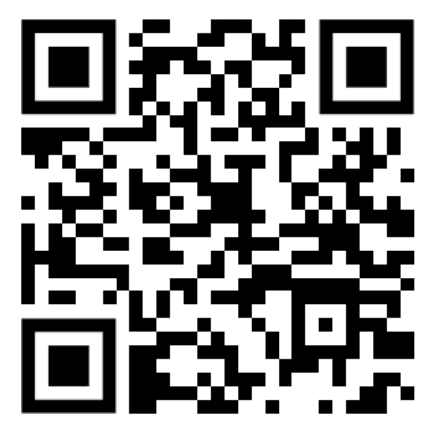
iOS
Anrdoid
Logging in
The login credentials will be emailed to the account administrator.
Logging in
The login credentials will be emailed to the account administrator.
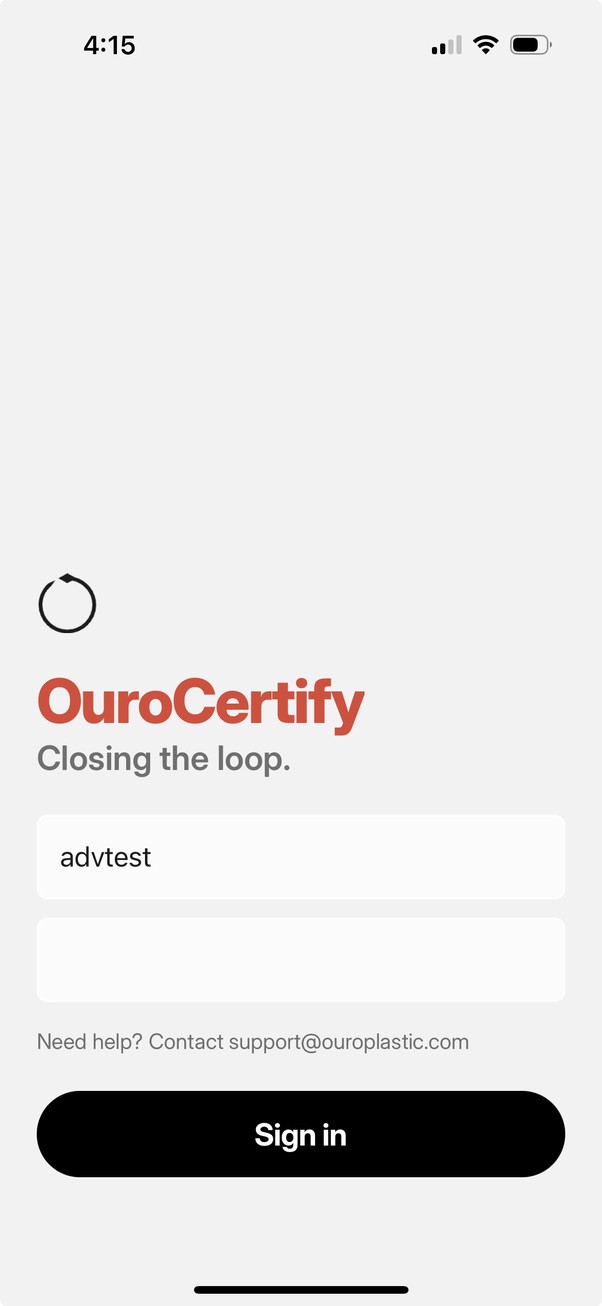
Home Page
The home page allows you to see all the trucks which have been assigned to your facility. You can search trucks by their bill of lading ID.
The bottom button allows you to scan the code attached to any bale/gaylord and go directly to the truck associated with it if you forget which truck the code belongs to.
Home Page
The home page allows you to see all the trucks which have been assigned to your facility. You can search trucks by their bill of lading ID.
The bottom button allows you to scan the code attached to any bale/gaylord and go directly to the truck associated with it if you forget which truck the code belongs to.
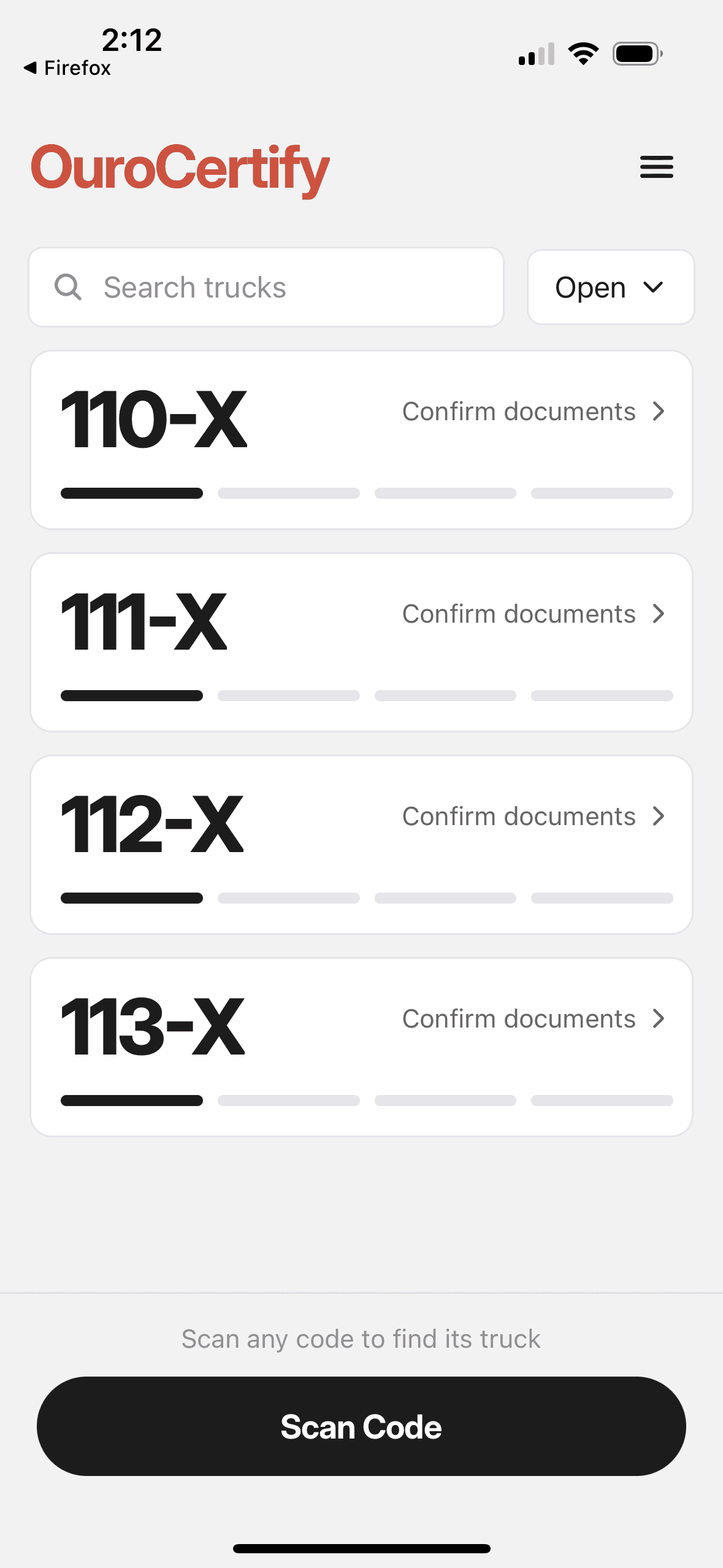
Completing a Truckload
Overview Page
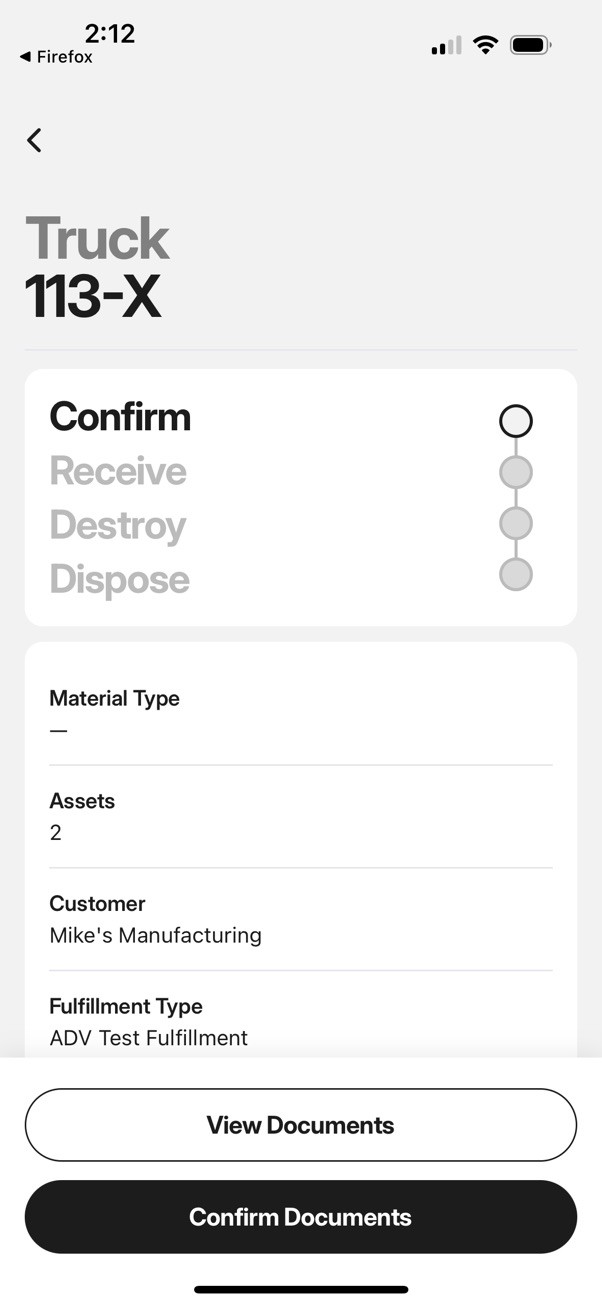
The overview page is a home for a truckload. Here, we can see details about the truck, including its origin, material type, and what fulfillment type is required.
We can also view all documents associated with the order by hitting the view documents button.
The progress button at the bottom is used to progress an order. Let’s move through an example order to see how we can complete the truckload.
Overview Page
The overview page is a home for a truckload. Here, we can see details about the truck, including its origin, material type, and what fulfillment type is required.
We can also view all documents associated with the order by hitting the view documents button.
The progress button at the bottom is used to progress an order. Let’s move through an example order to see how we can complete the truckload.
Confirm Documents
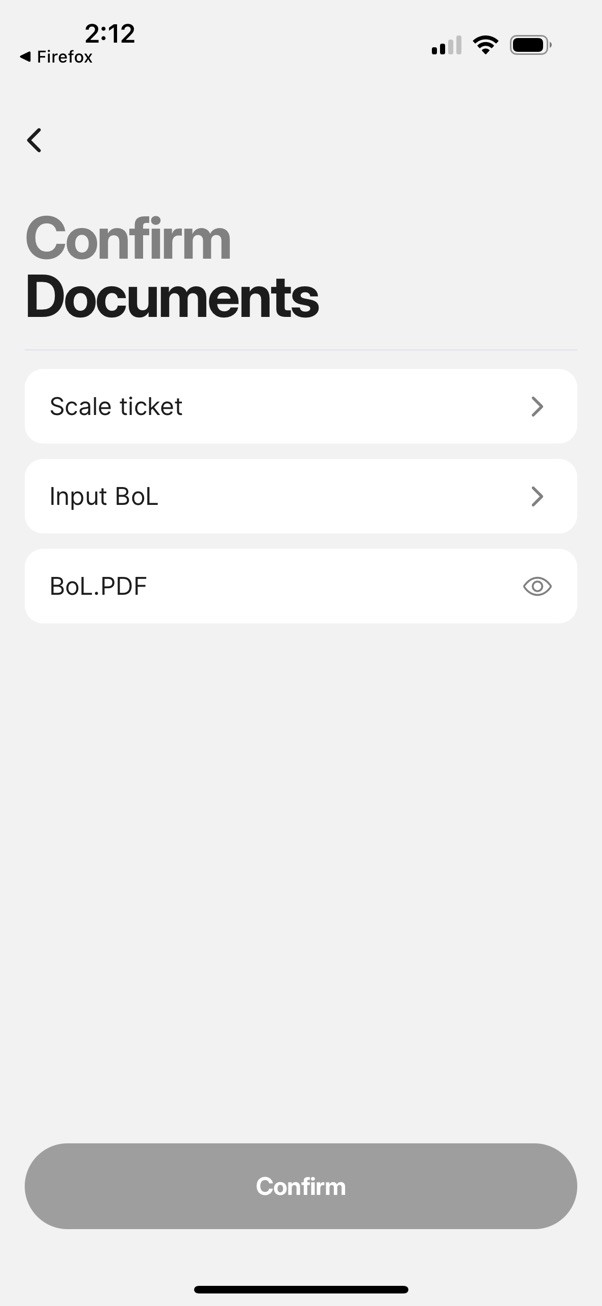
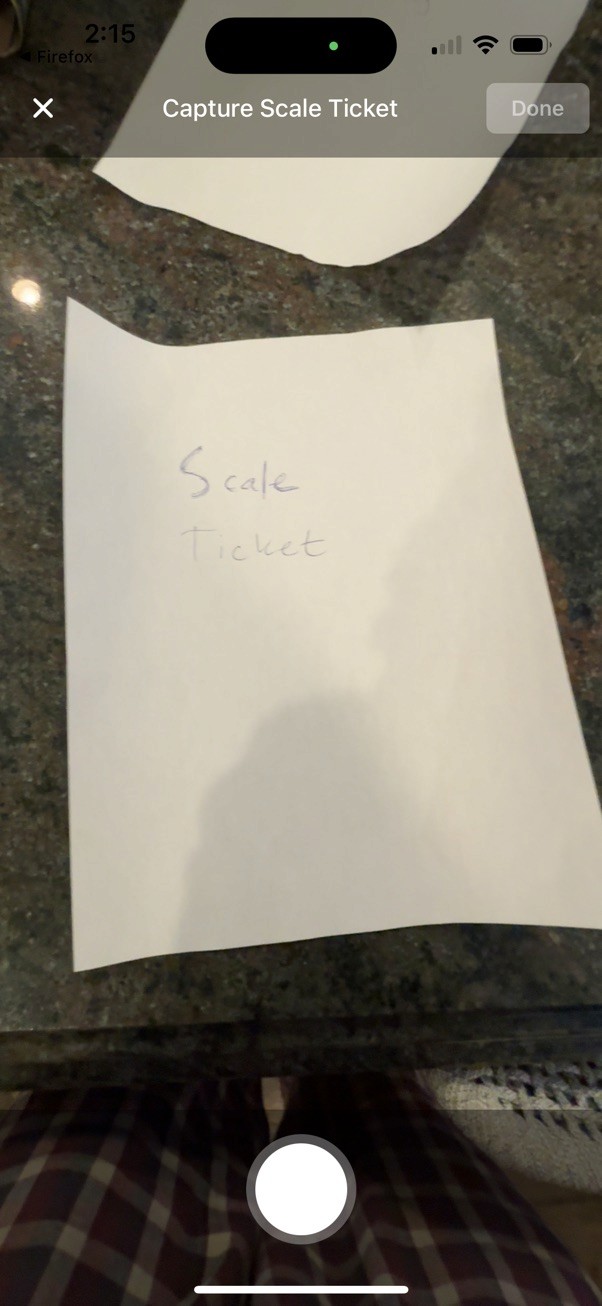
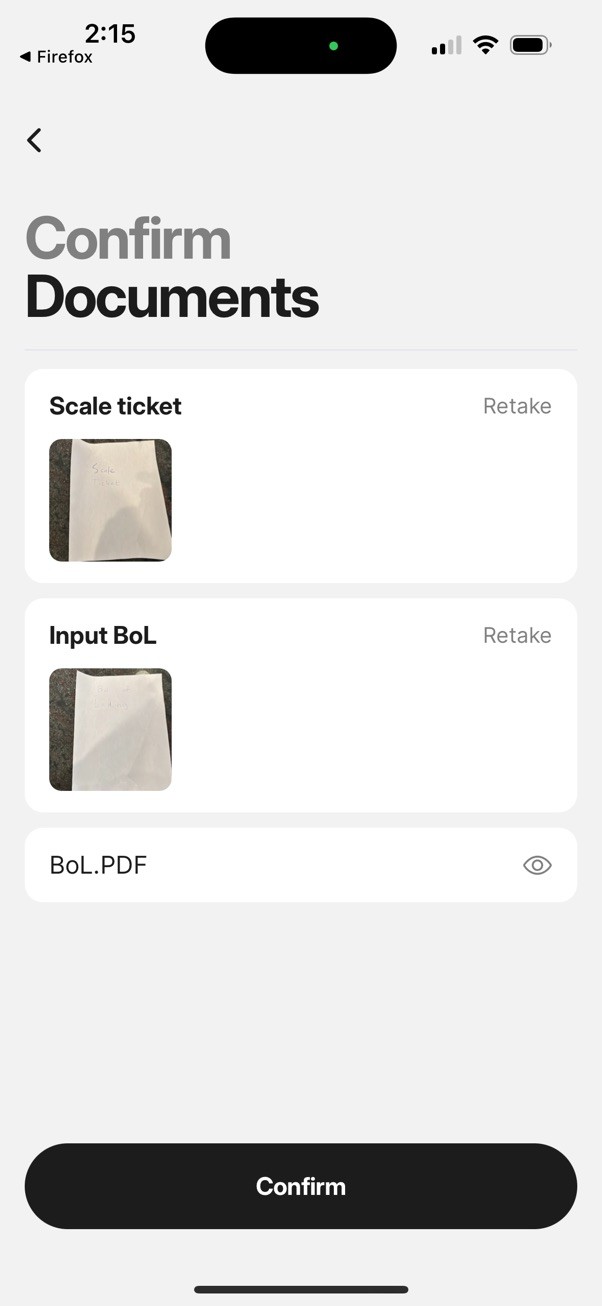
The first step is to confirm the truck documents. The first document is the bill of lading - press the Input Bol Button and take pictures of the trucker’s bill of lading. The second document is the scale ticket - take a photo of the scale tickets that the trucker brings with them.
Press confirm documents to complete the process.
Confirm Documents
The first step is to confirm the truck documents. The first document is the bill of lading - press the Input Bol Button and take pictures of the trucker’s bill of lading. The second document is the scale ticket - take a photo of the scale tickets that the trucker brings with them.
Press confirm documents to complete the process.
Recieve
The next step is to receive the assets. The process is as follows:
Recieve
The next step is to receive the assets. The process is as follows:
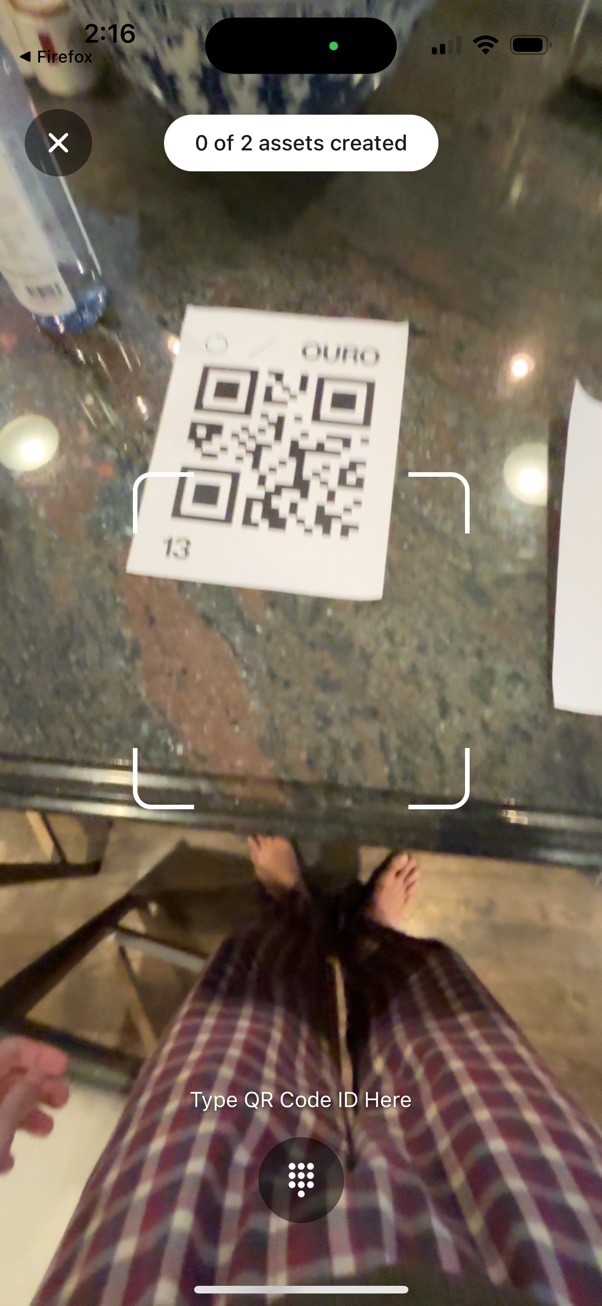
Scan a code. Take an unassigned qr code sheet, tape it to the gaylord/pallet, and point the scanner at it to attach it. Alternatively, press the button at the bottom of the screen to type the code id in.
Scan a code. Take an unassigned qr code sheet, tape it to the gaylord/pallet, and point the scanner at it to attach it. Alternatively, press the button at the bottom of the screen to type the code id in.
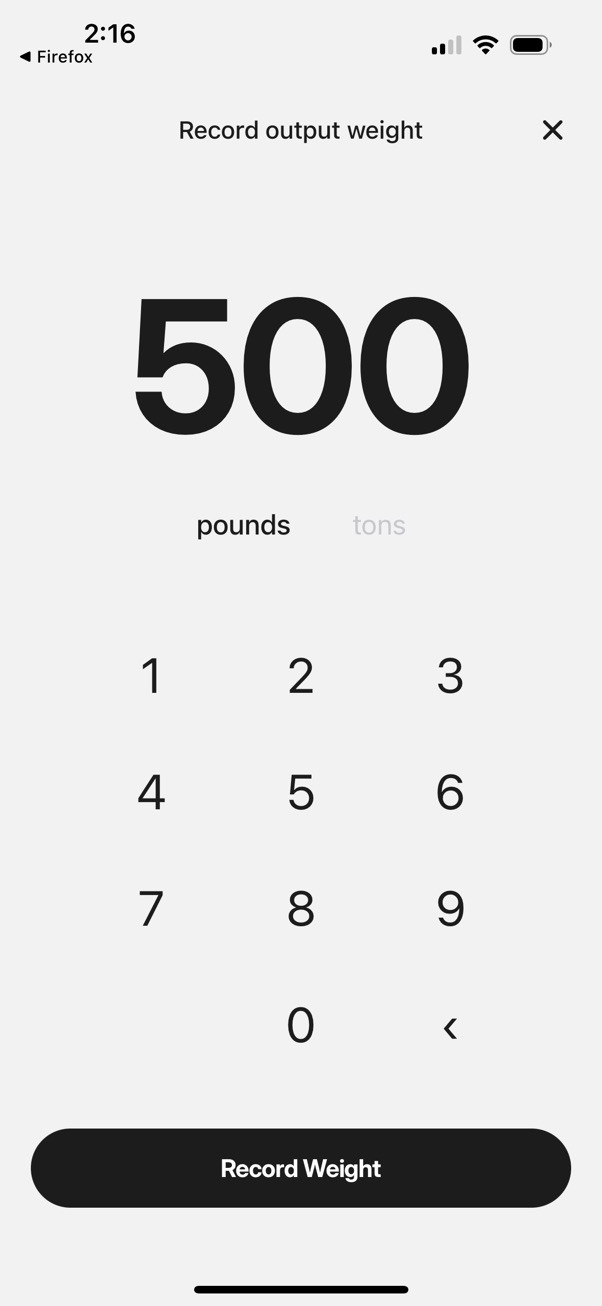
Weigh the object. Type in the weight in either pounds or tons.
Weigh the object. Type in the weight in either pounds or tons.
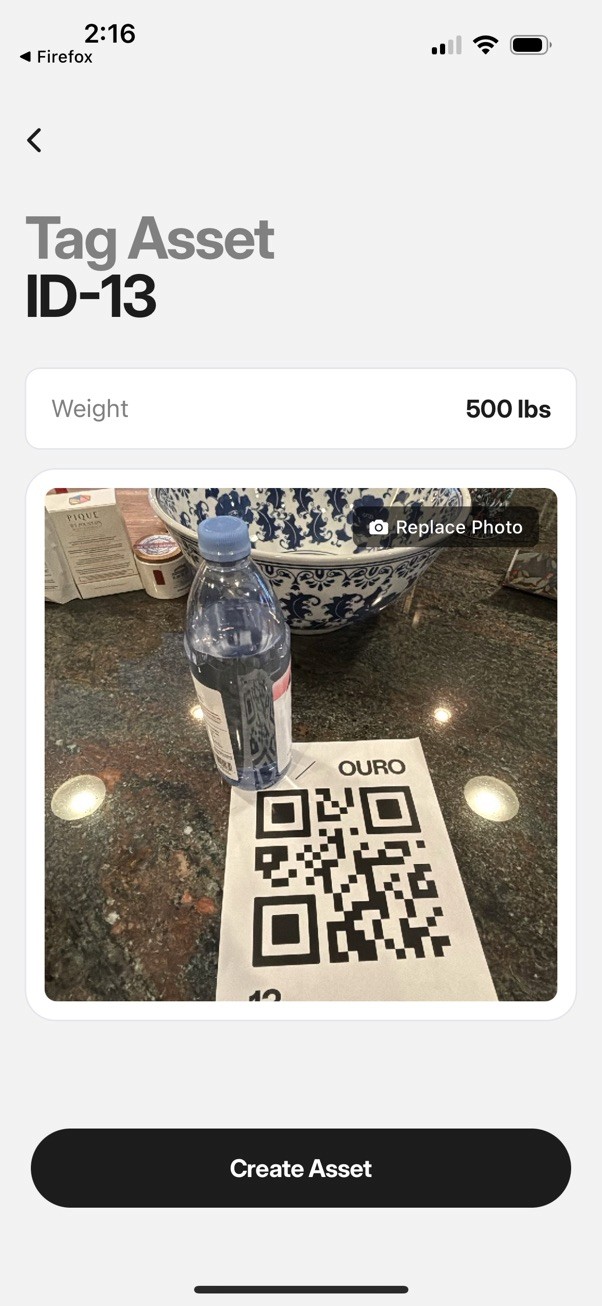
Take a photo of the object. Try to get the taped QR code in the frame.
Take a photo of the object. Try to get the taped QR code in the frame.
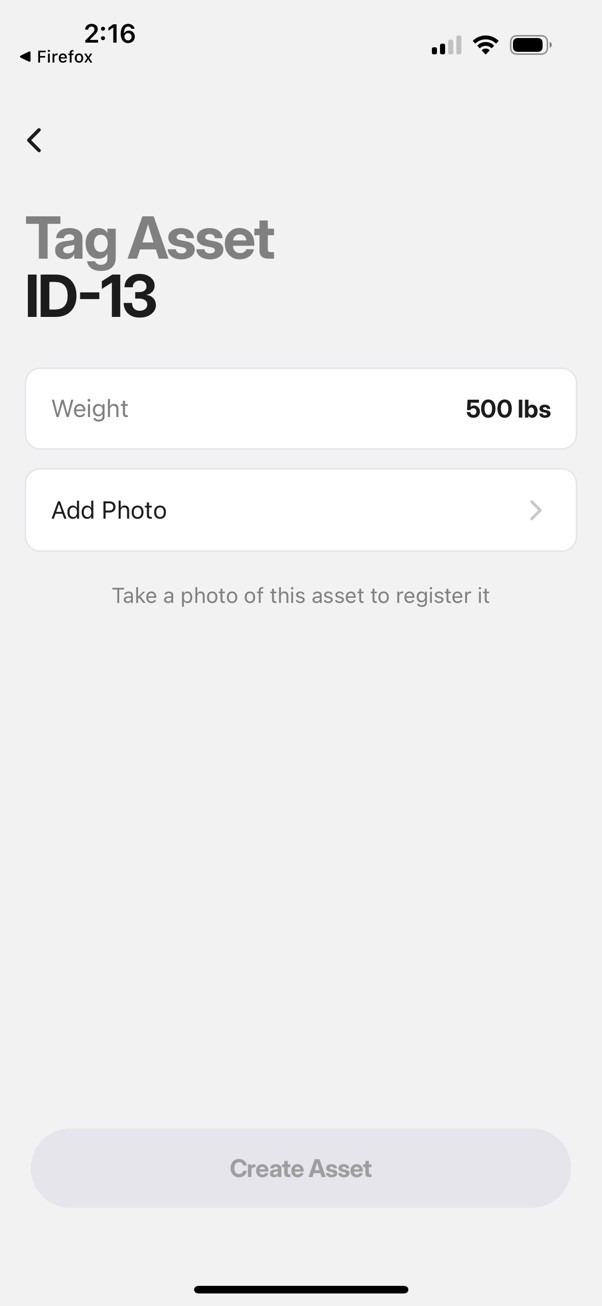
Confirm the details.
Confirm the details.
Complete these steps for each item in the manifest. You can see how many assets are expected at the top of the qr scanner screen.
Click the x/y assets button to see the list of scanned assets and review them.
Destroy
The next step is to record the destruction of the objects. The steps are as follows:
Scan a code.
Confirm the object is correct
Record the destruction process
Confirm the destruction video
Destroy
The next step is to record the destruction of the objects. The steps are as follows:
Scan a code.
Confirm the object is correct
Record the destruction process
Confirm the destruction video
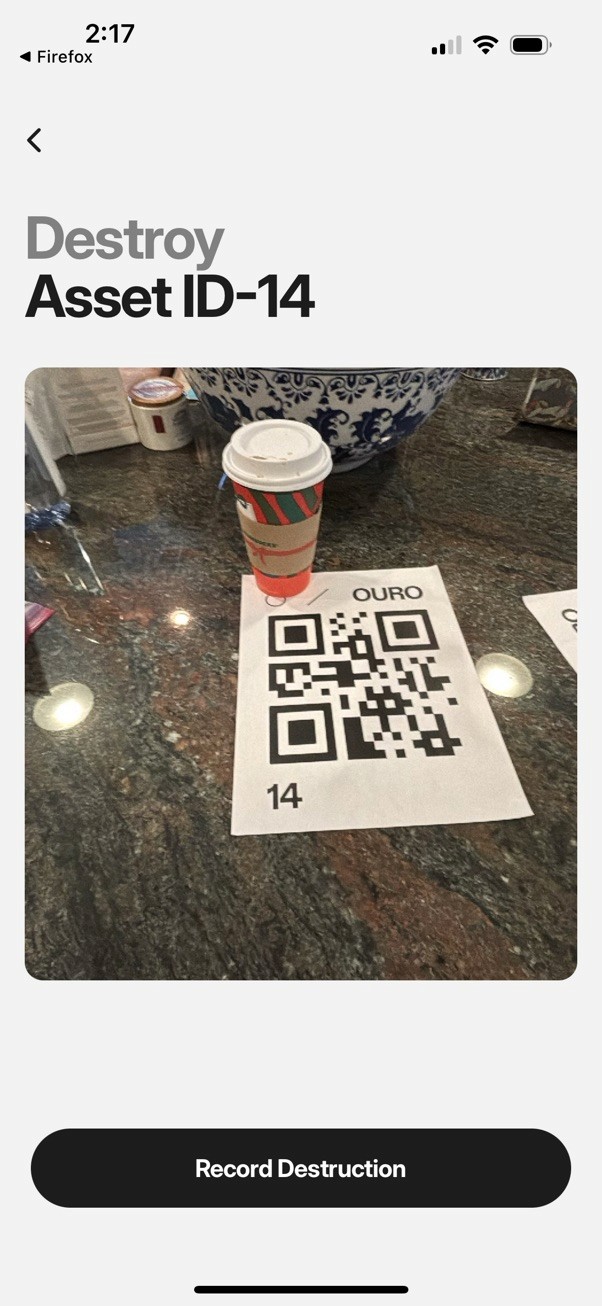
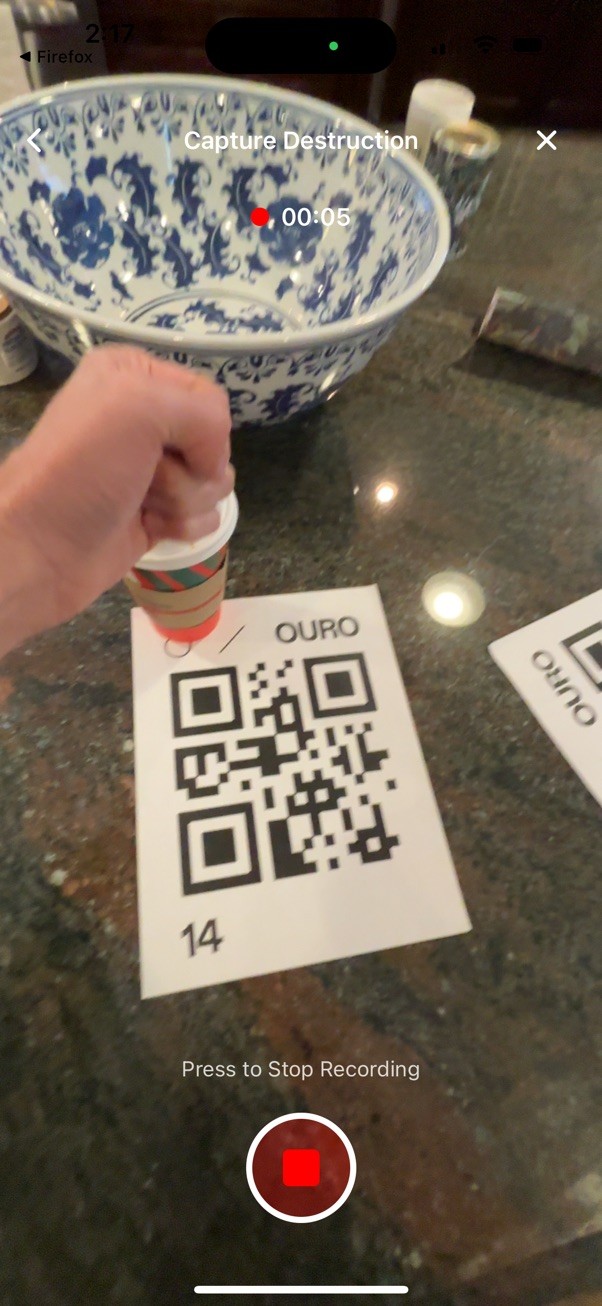
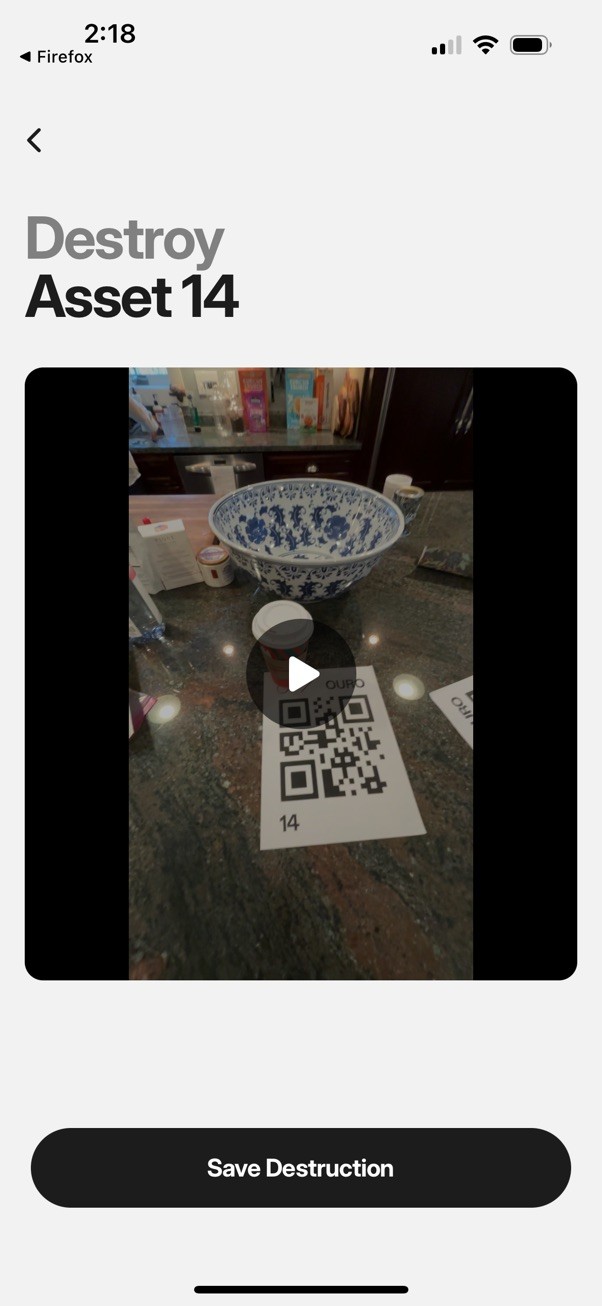
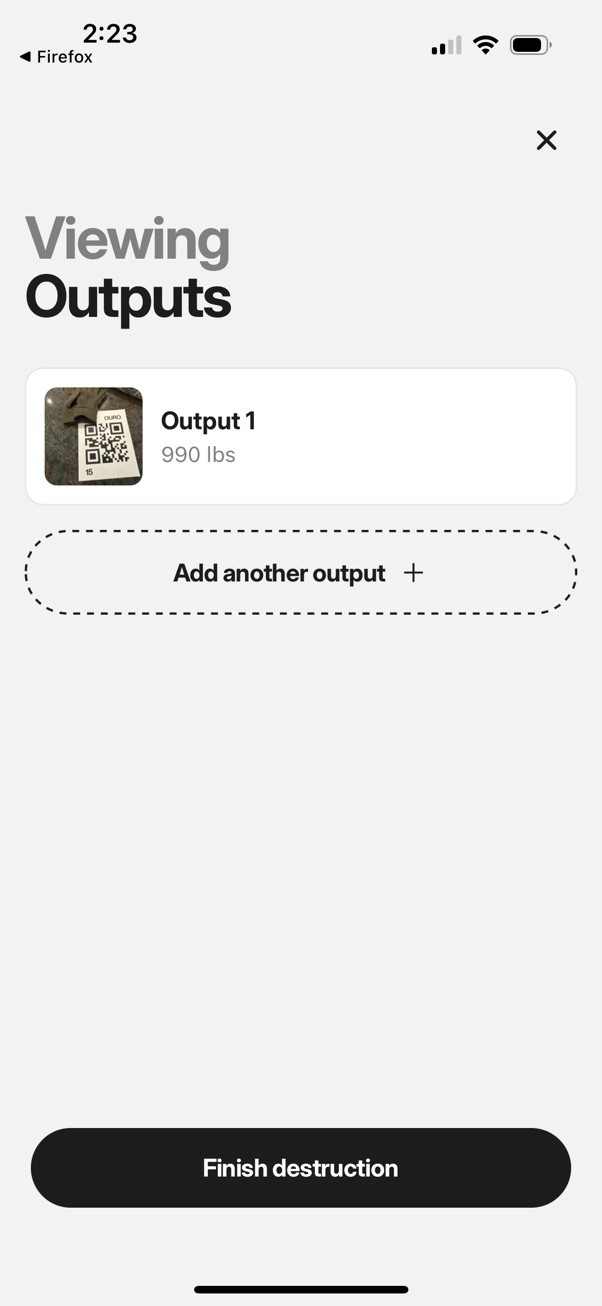
Once all the objects have a destruction video attached, the app will immediately move to assigning output objects, which are the ground/destroyed materials from the destruction process.
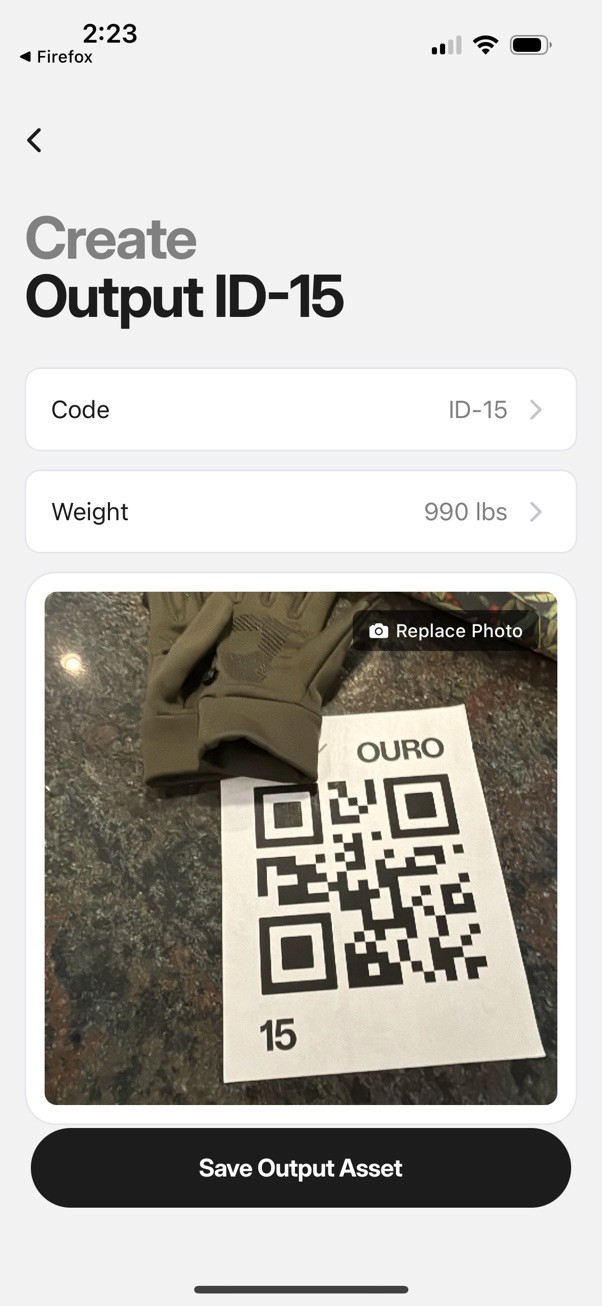
Assign output objects
Assigning output objects works very similarly to the receive process.
Scan a code. Take an unassigned qr code sheet, tape it to the gaylord/pallet, and point the scanner at it to attach it. Alternatively, press the button at the bottom of the screen to type the code id in.
Weigh the first object
Take a photo of the object. Try to get the taped qr code in the frame.
Confirm the details
Add additional objects if they exist
Assign output objects
Assigning output objects works very similarly to the receive process.
Scan a code. Take an unassigned qr code sheet, tape it to the gaylord/pallet, and point the scanner at it to attach it. Alternatively, press the button at the bottom of the screen to type the code id in.
Weigh the first object
Take a photo of the object. Try to get the taped qr code in the frame.
Confirm the details
Add additional objects if they exist
Dispose
The final step in the process is to mark the disposal, or the sending of the output objects to be recycled, incinerated, etc.
Choose a disposal type and partner
Scan a code
Take a photo
Review & Complete
Dispose
The final step in the process is to mark the disposal, or the sending of the output objects to be recycled, incinerated, etc.
Choose a disposal type and partner
Scan a code
Take a photo
Review & Complete