Account Setup.
Administration
Access & setup your company in the settings panel.

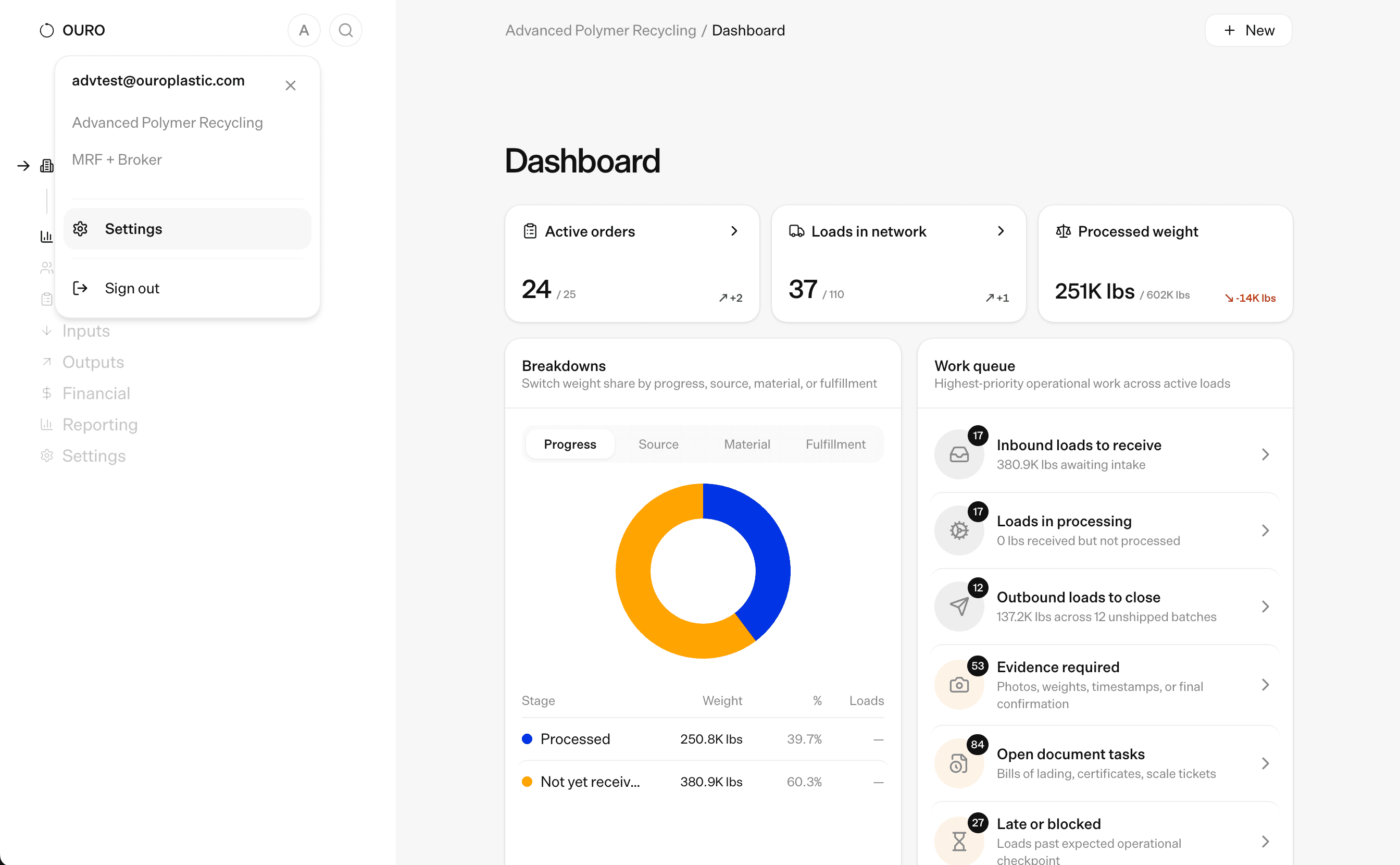
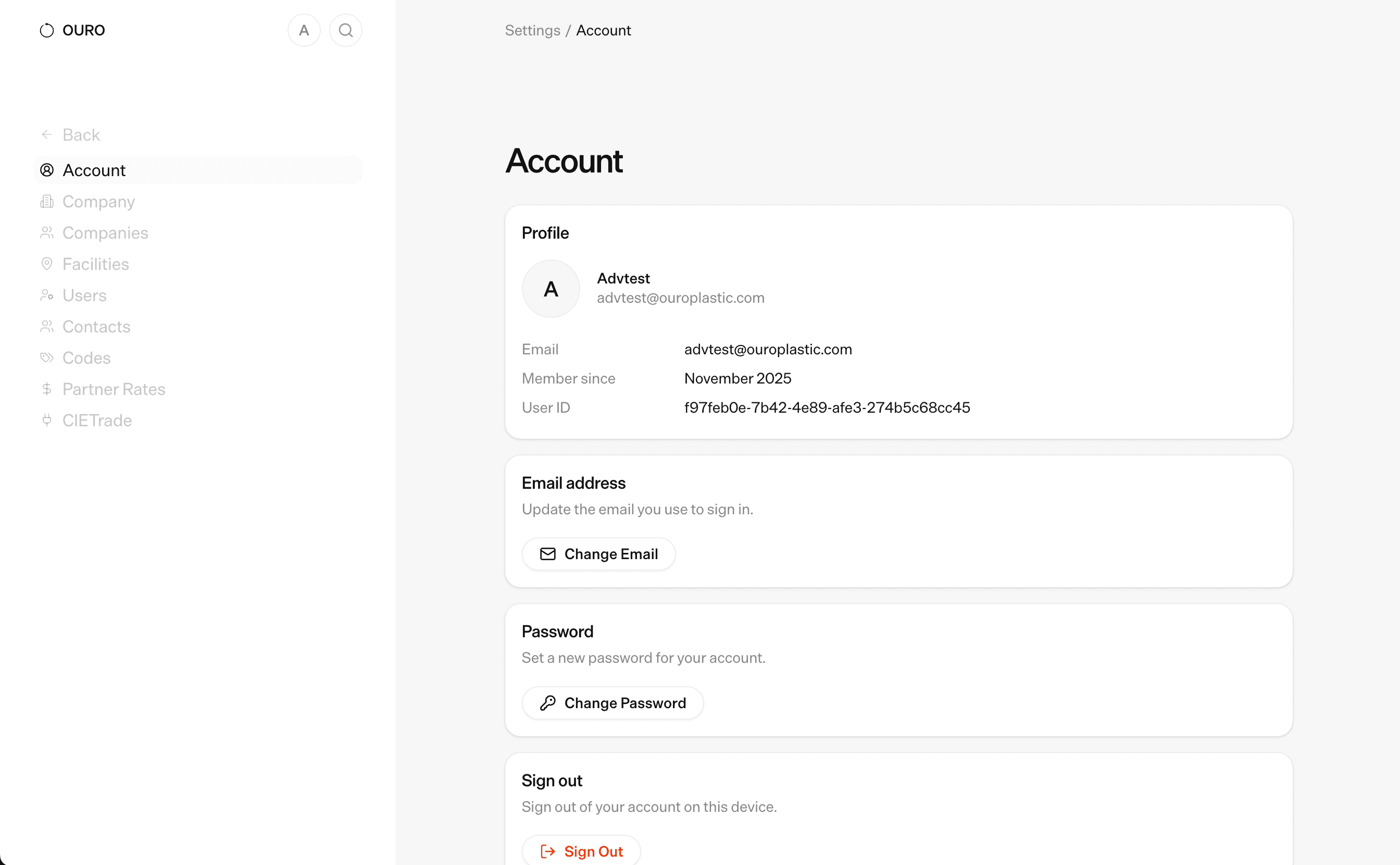
Creating new facilities for yourself
Click the Add Facility button at the bottom of your company’s tab in admin to create a new facility for yourself
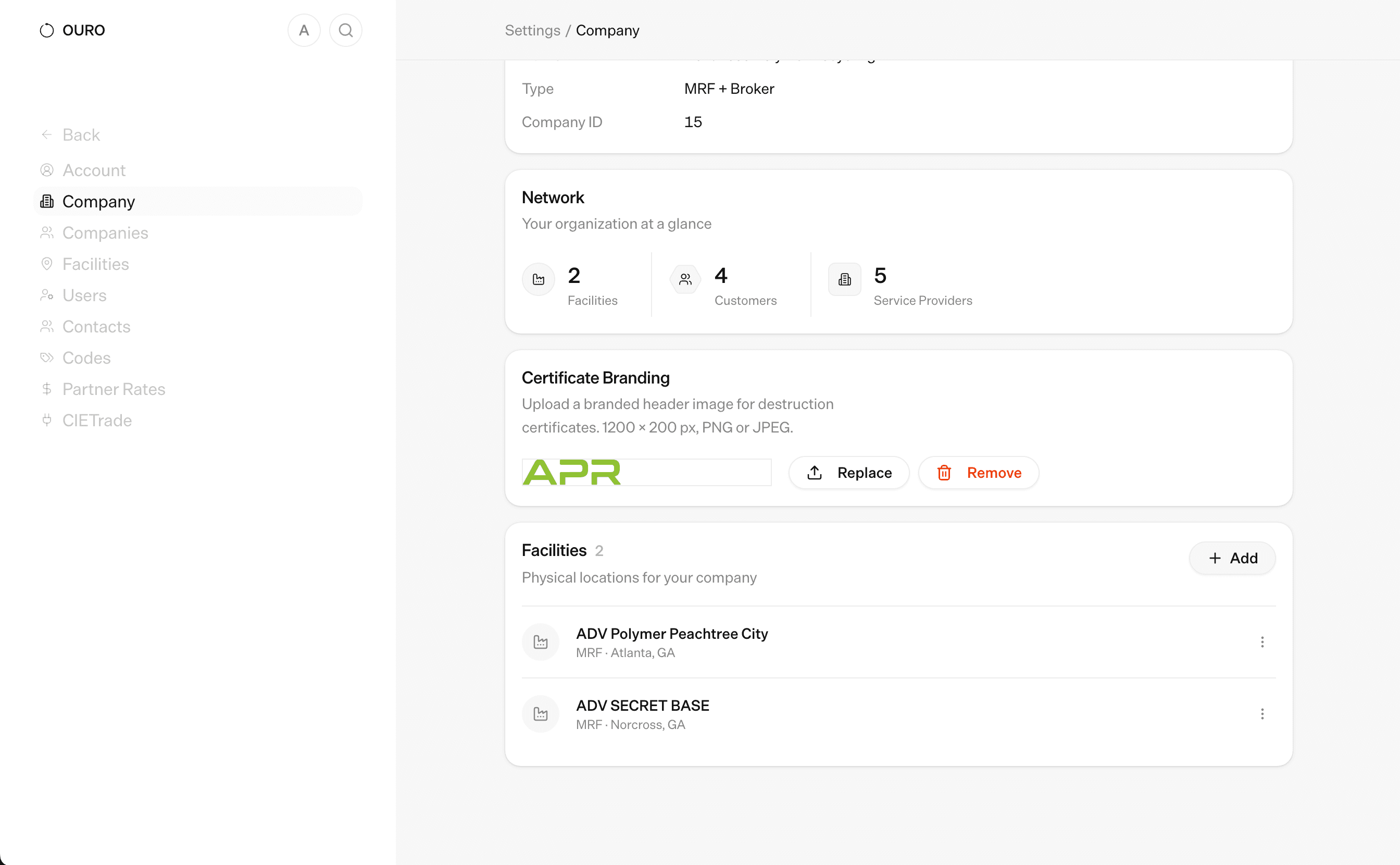
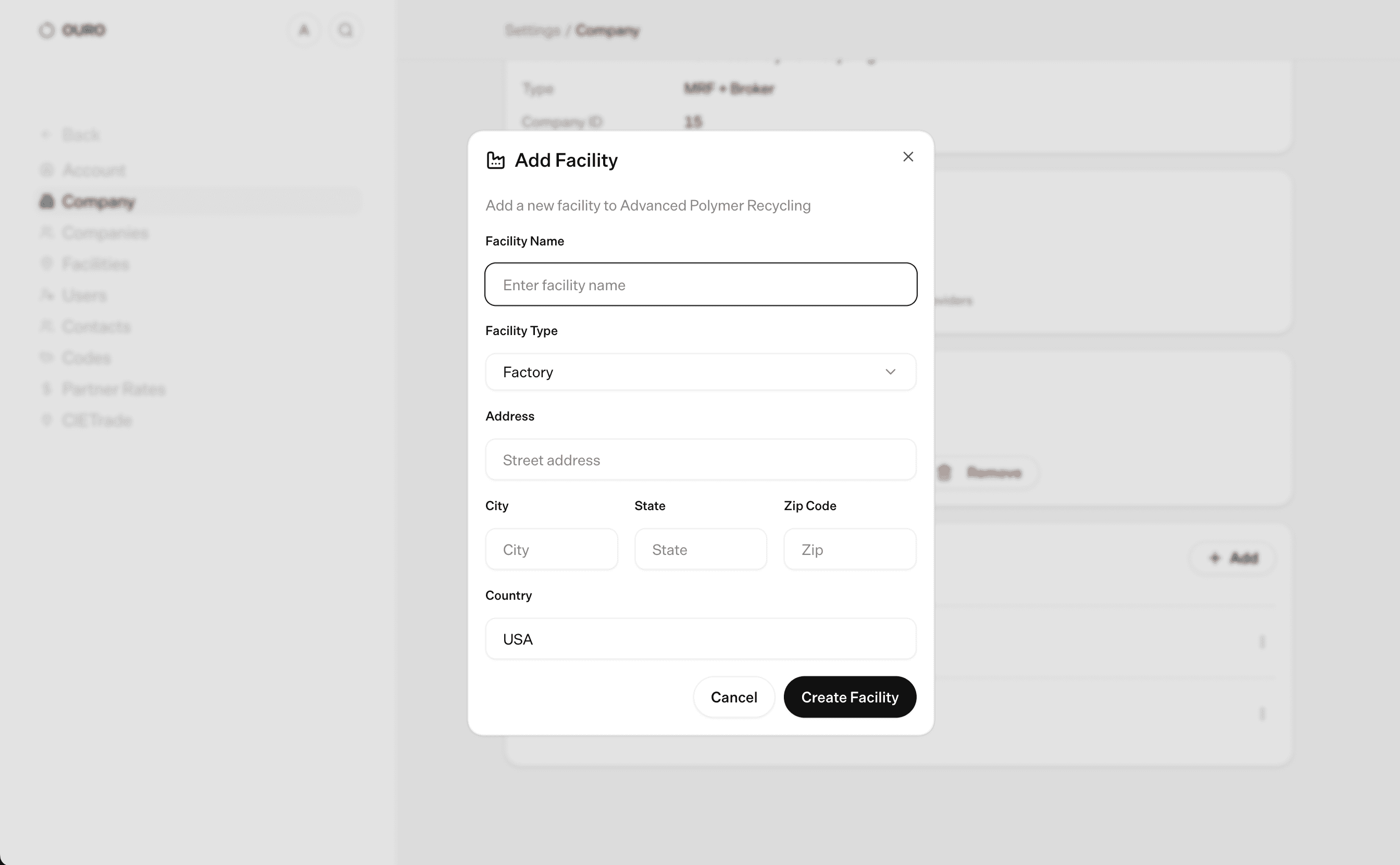
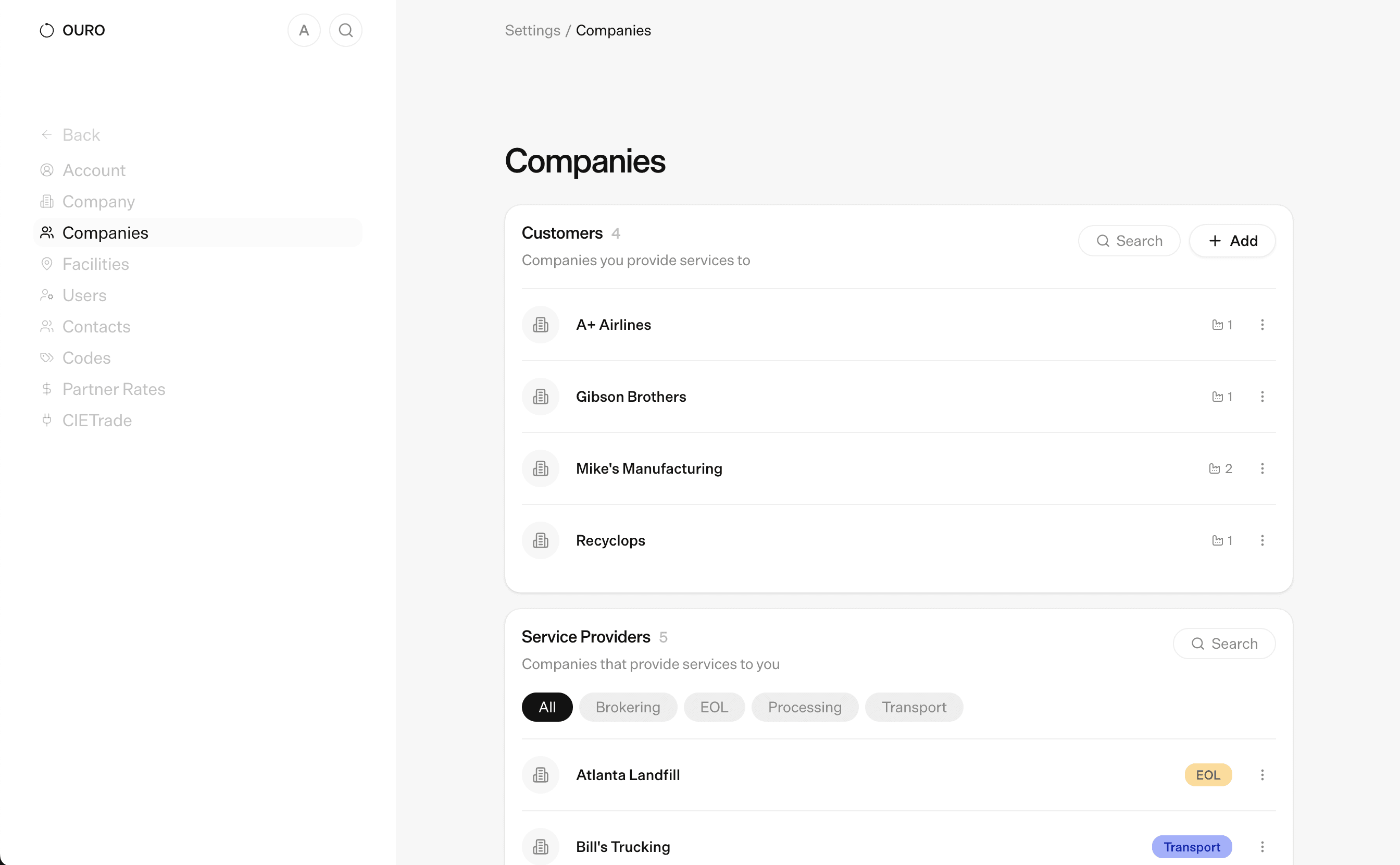
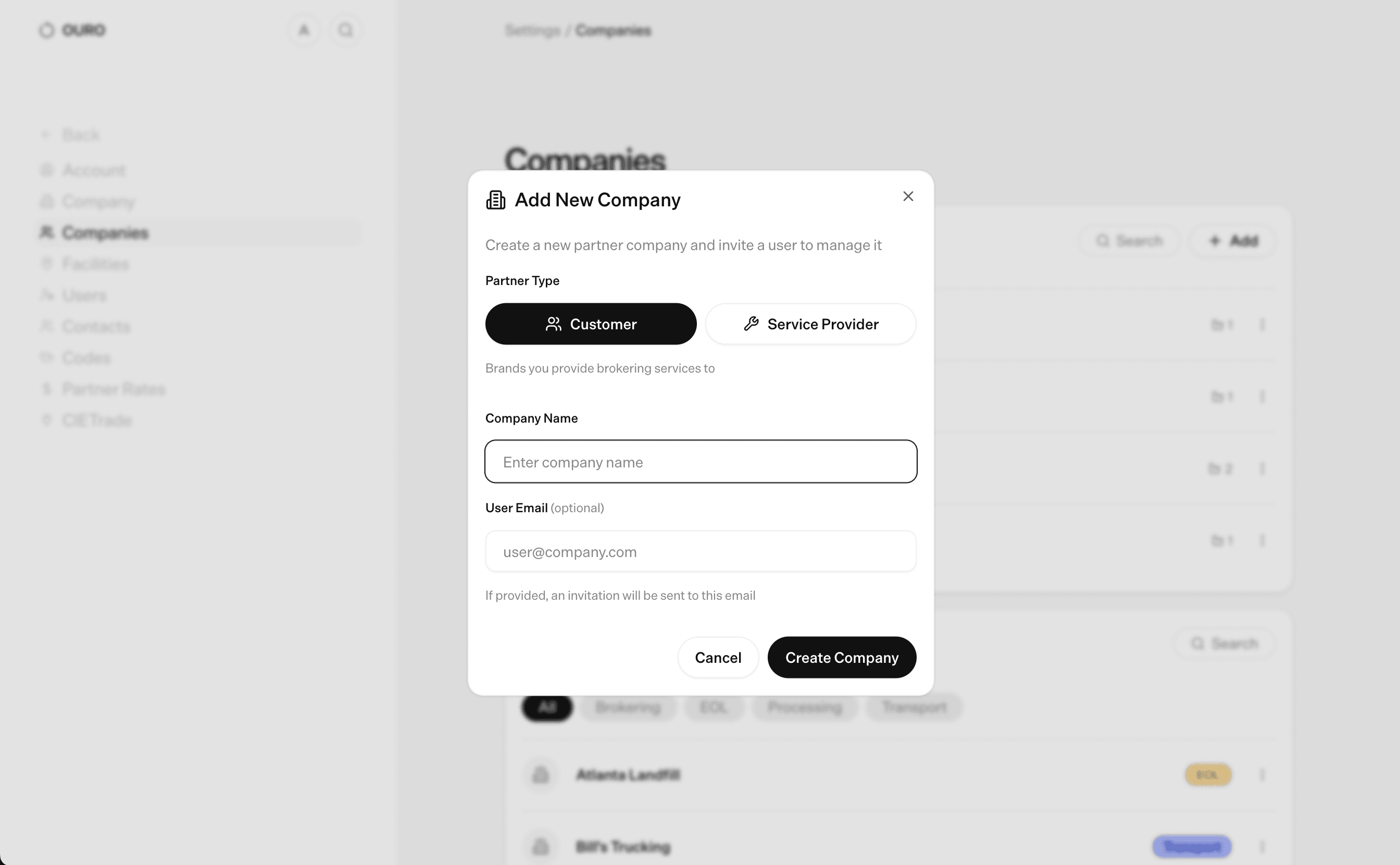
Creating new companies for your clients/downstream partners
Click the Companies tab and then click the Add Company button at the bottom of the screen. Choose whether this is an upstream (brand) or downstream (processor, MRF, recycler etc) and fill out the information. You can provide an email to invite someone from the company to view their portal. You can also invite more people later.
Creating new facilities for your partners
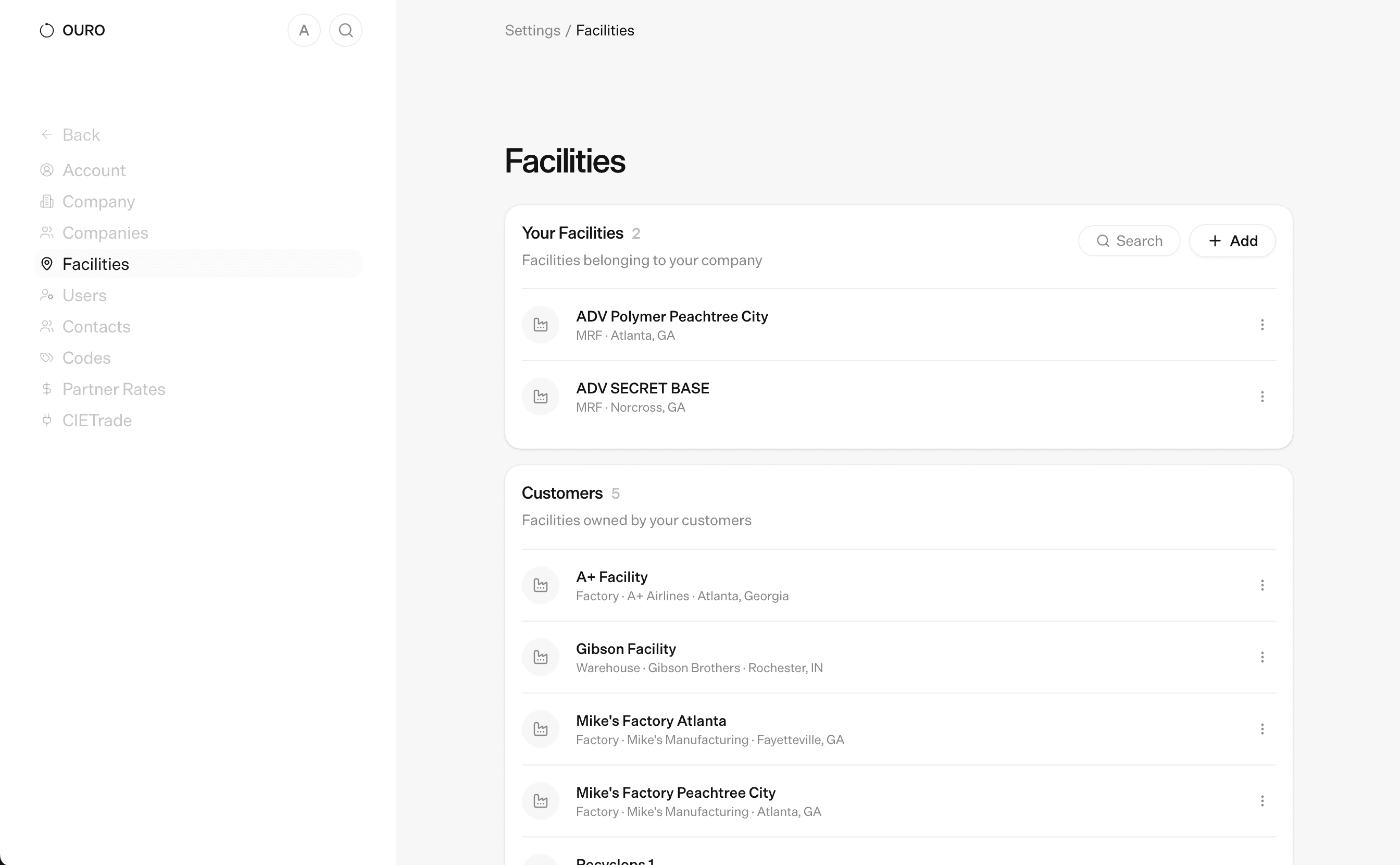
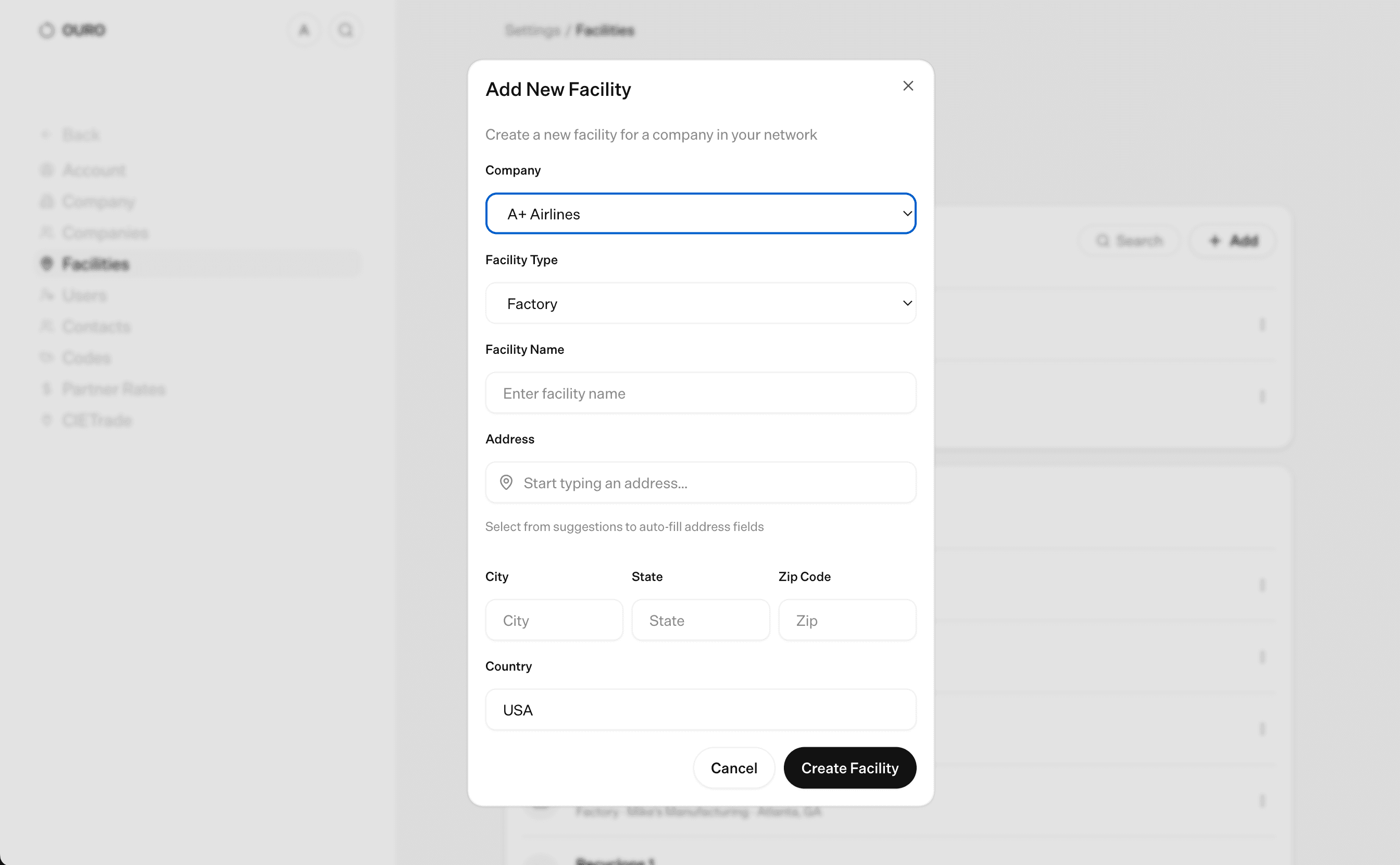
Click the facilities tab and then click the Add Facility button at the bottom of the screen. You can choose which company to assign the facility to if you are a broker, including yourself. Fill out the information about the location and type of facility to finish creating.
Sending invites to the platform
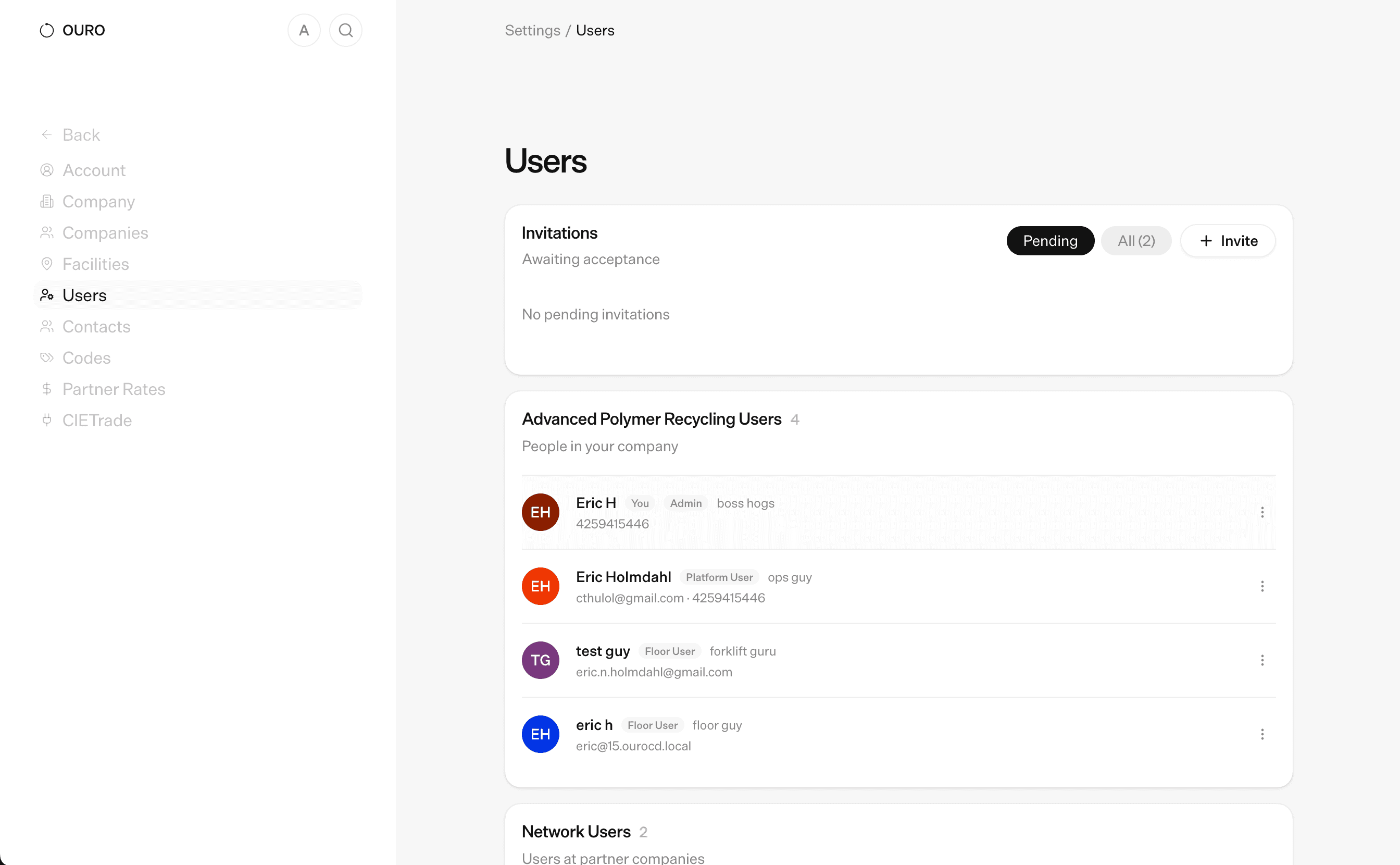
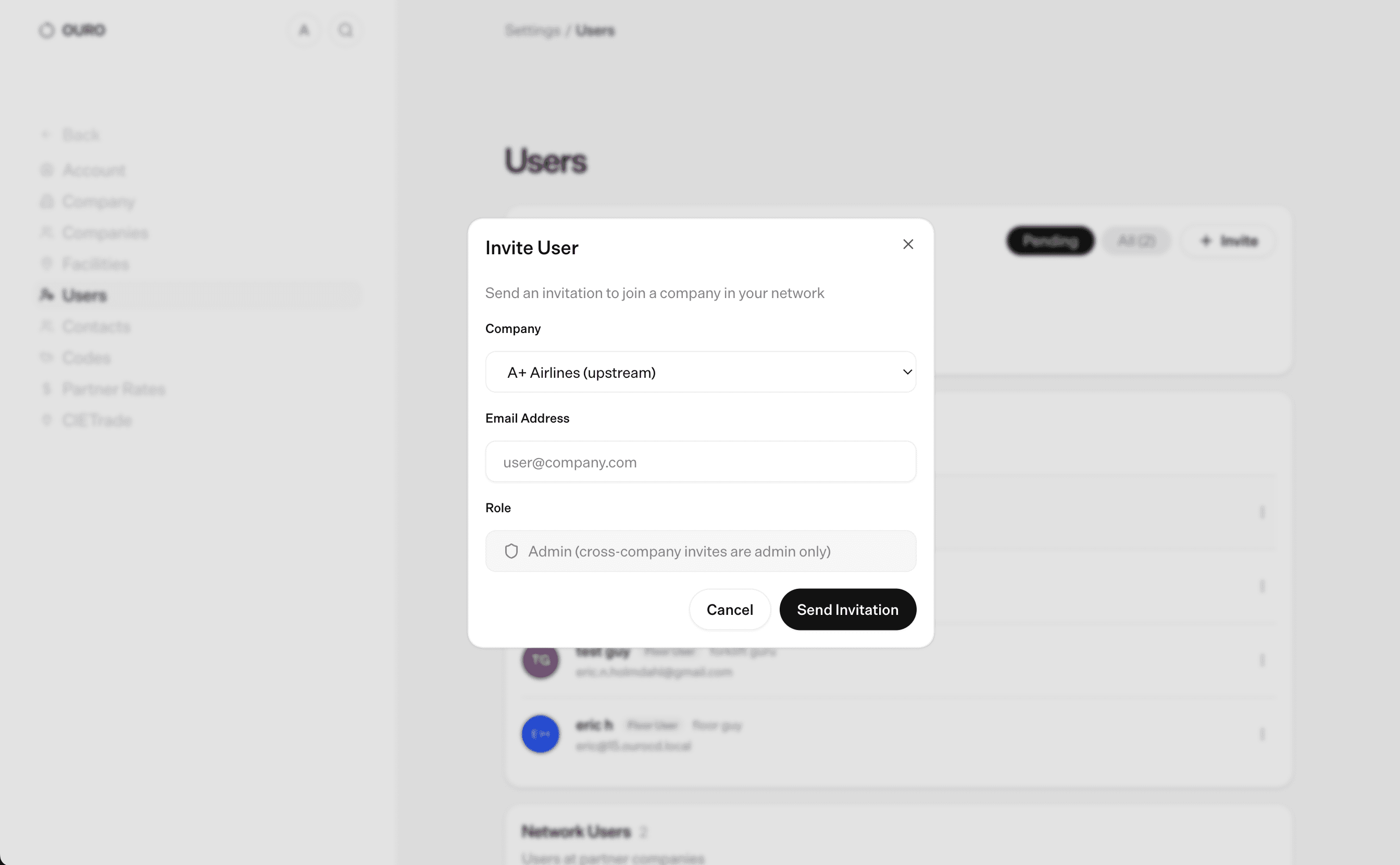
Click the users tab and then click the Add User button to invite a user. You can choose which company in your network to add them to. An email will be sent and they will gain access to the information of that company.
Generate Codes
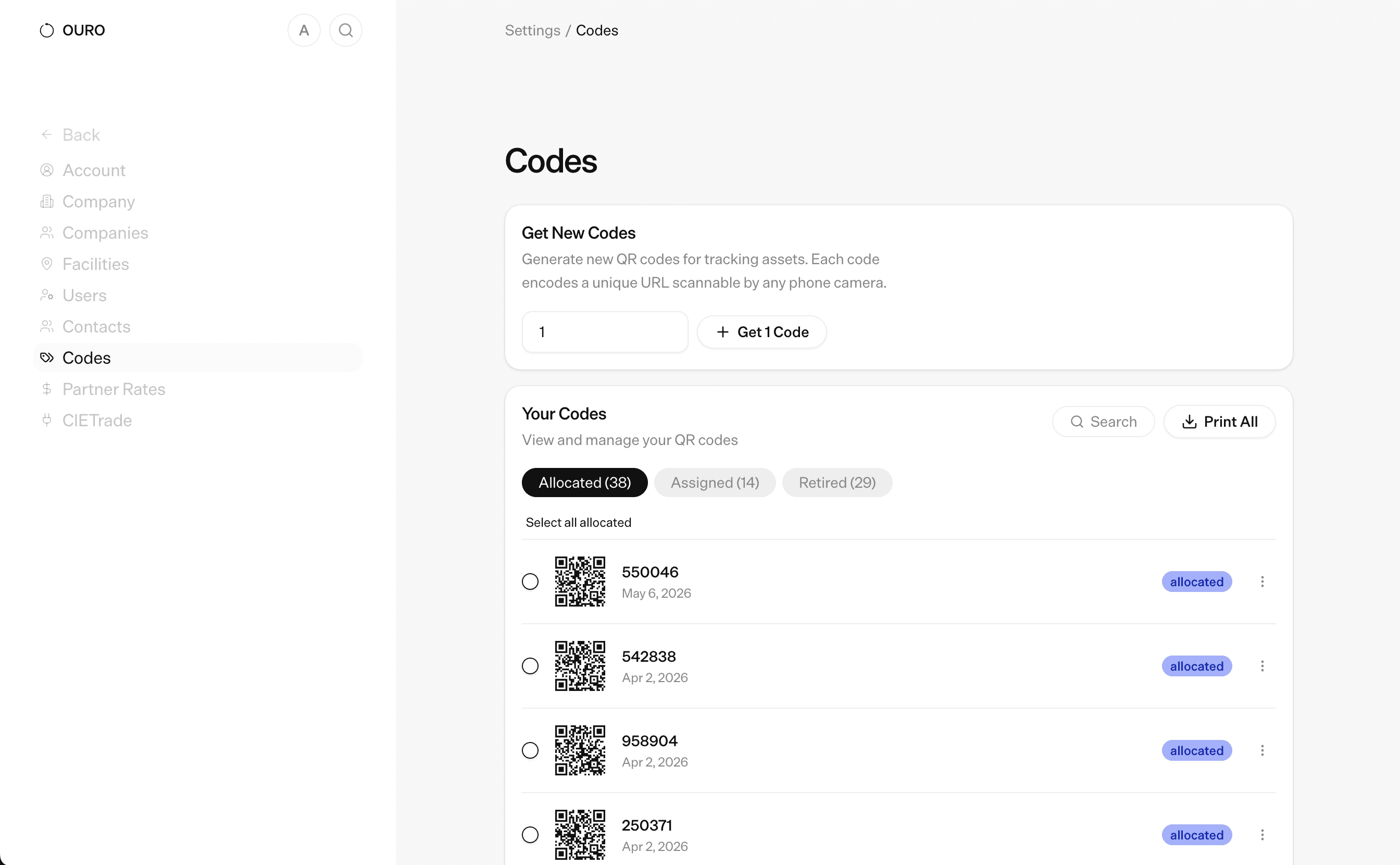
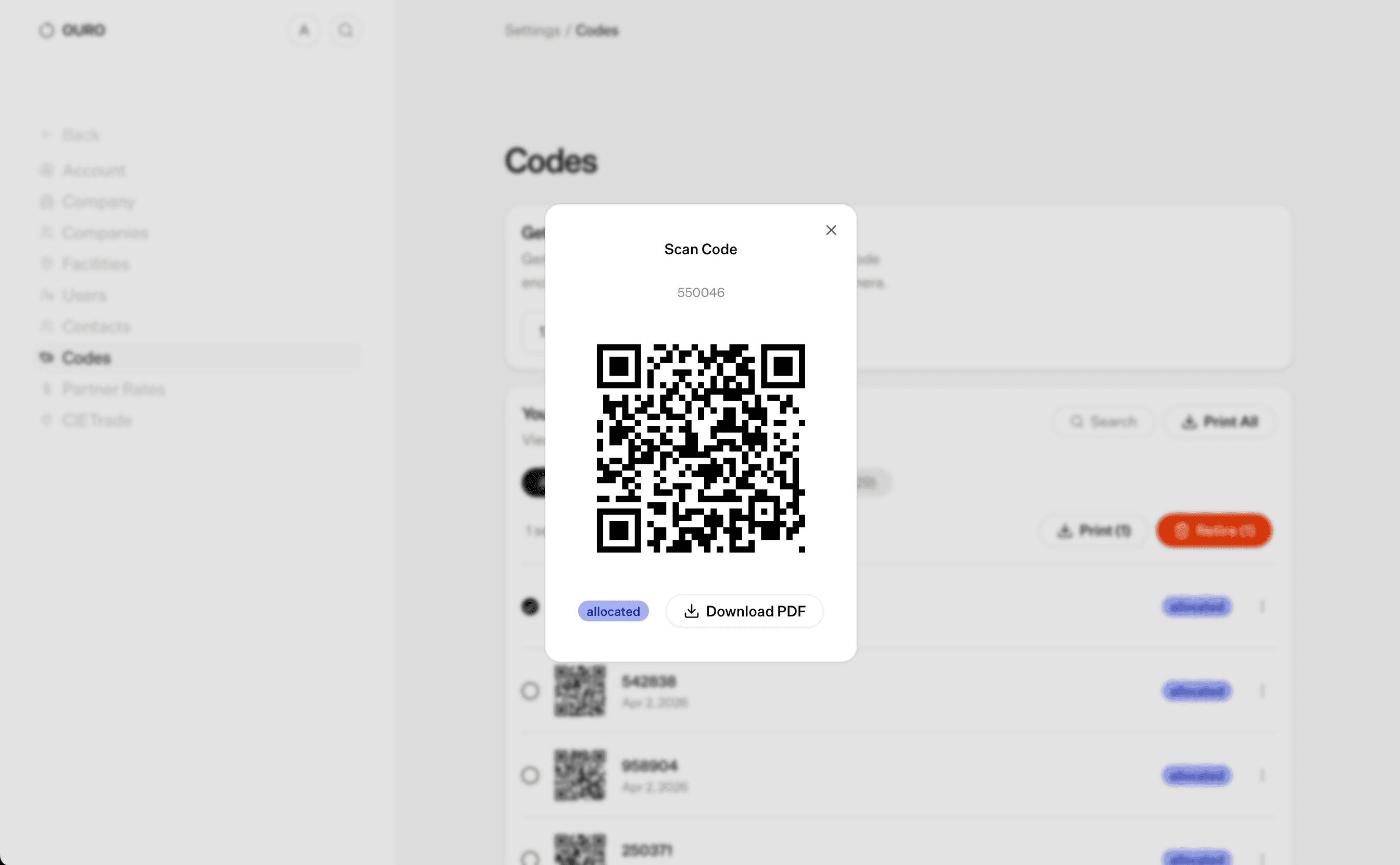
If you want to generate a bulk set of qr codes that can be used on the floor, navigate to the Codes tab in settings.
You can also generate order specific codes on the page for a particular order or a truck in an order.
Exploring Orders
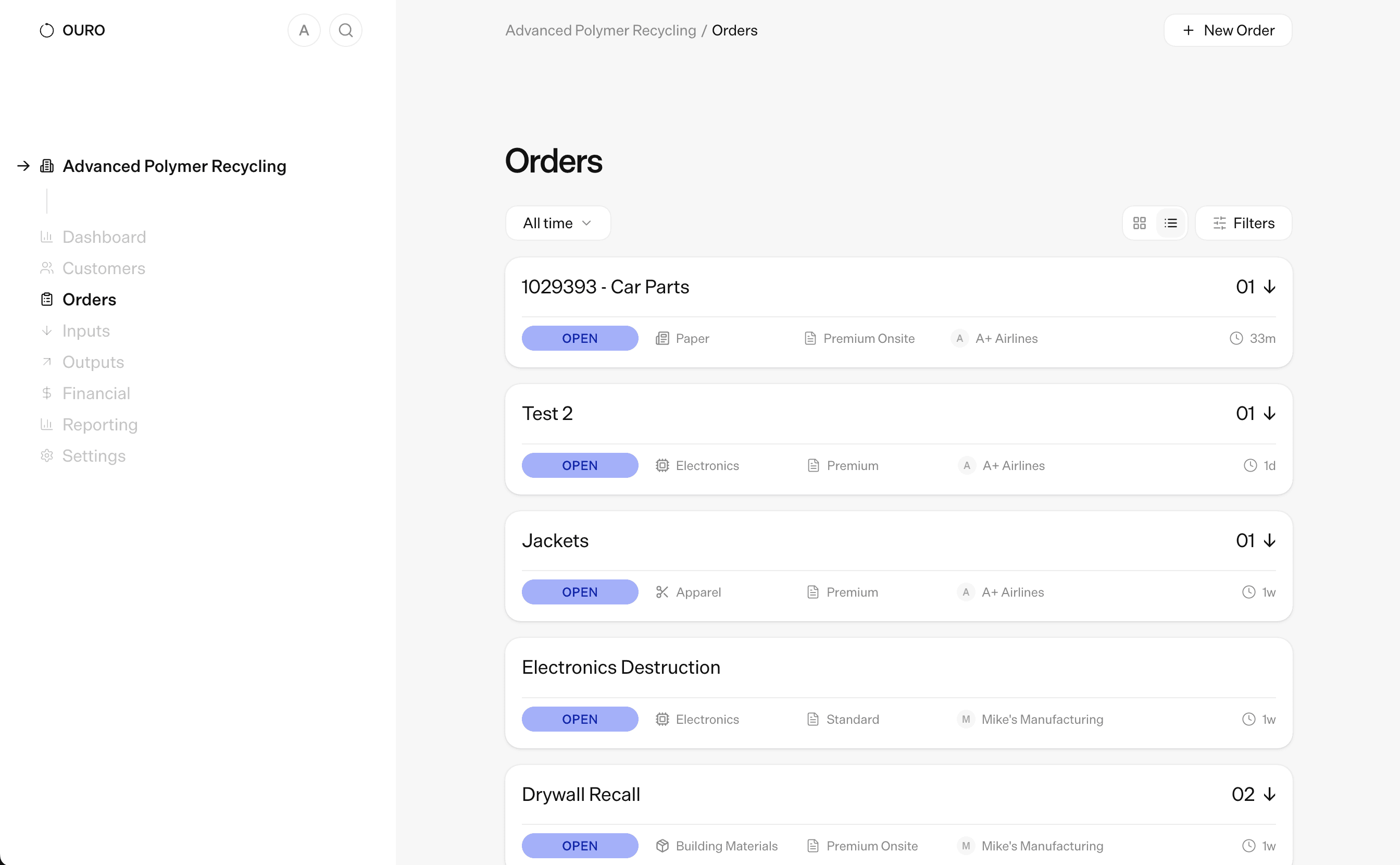
When you log in, you will be sent to the orders page. Here, you can sort your orders by company, activity status, or location.
The search bar allows you to search by truck ID, order ID, description, or location.
Viewing Metrics
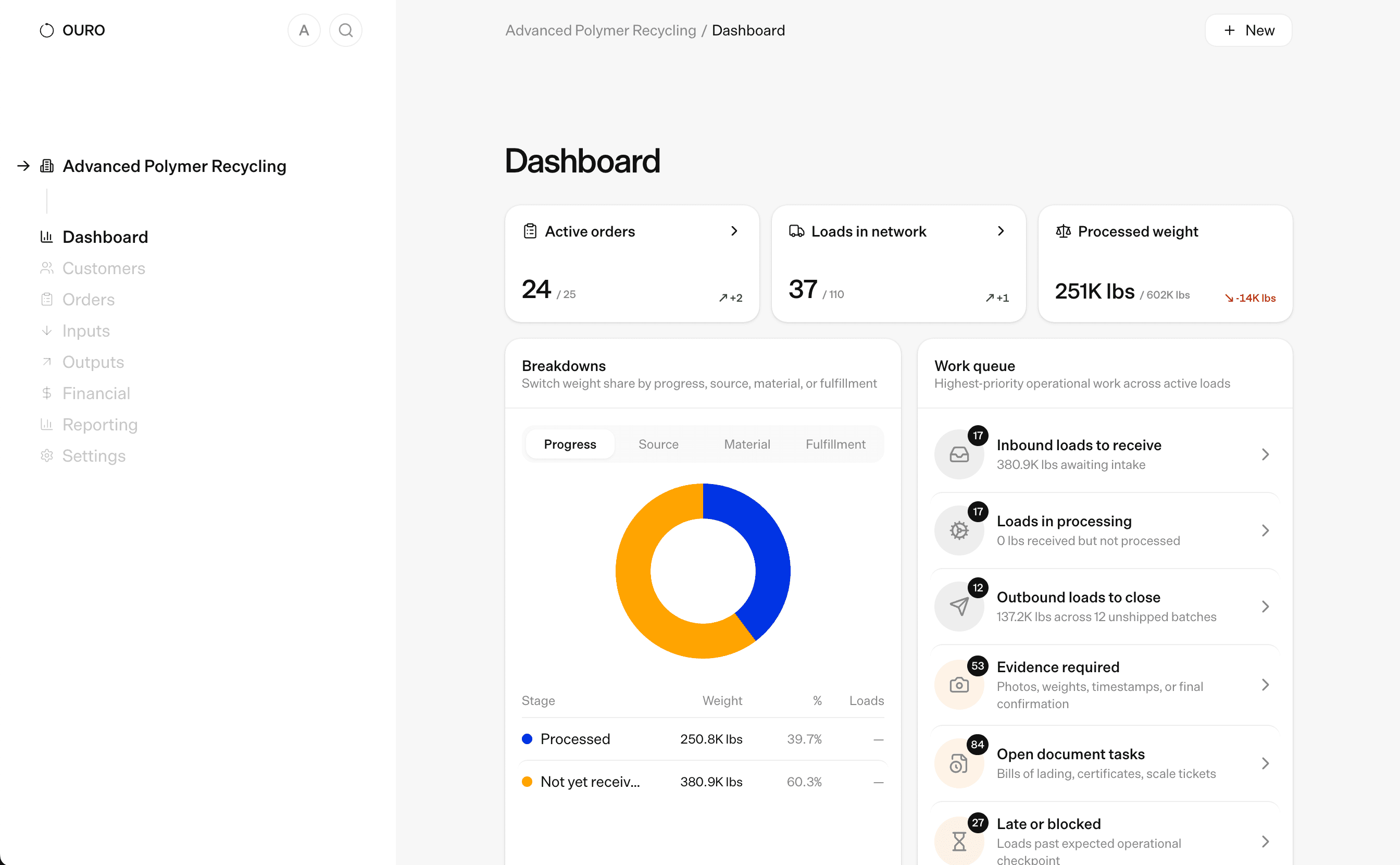
Navigate to the dashboard to see all of your metrics.
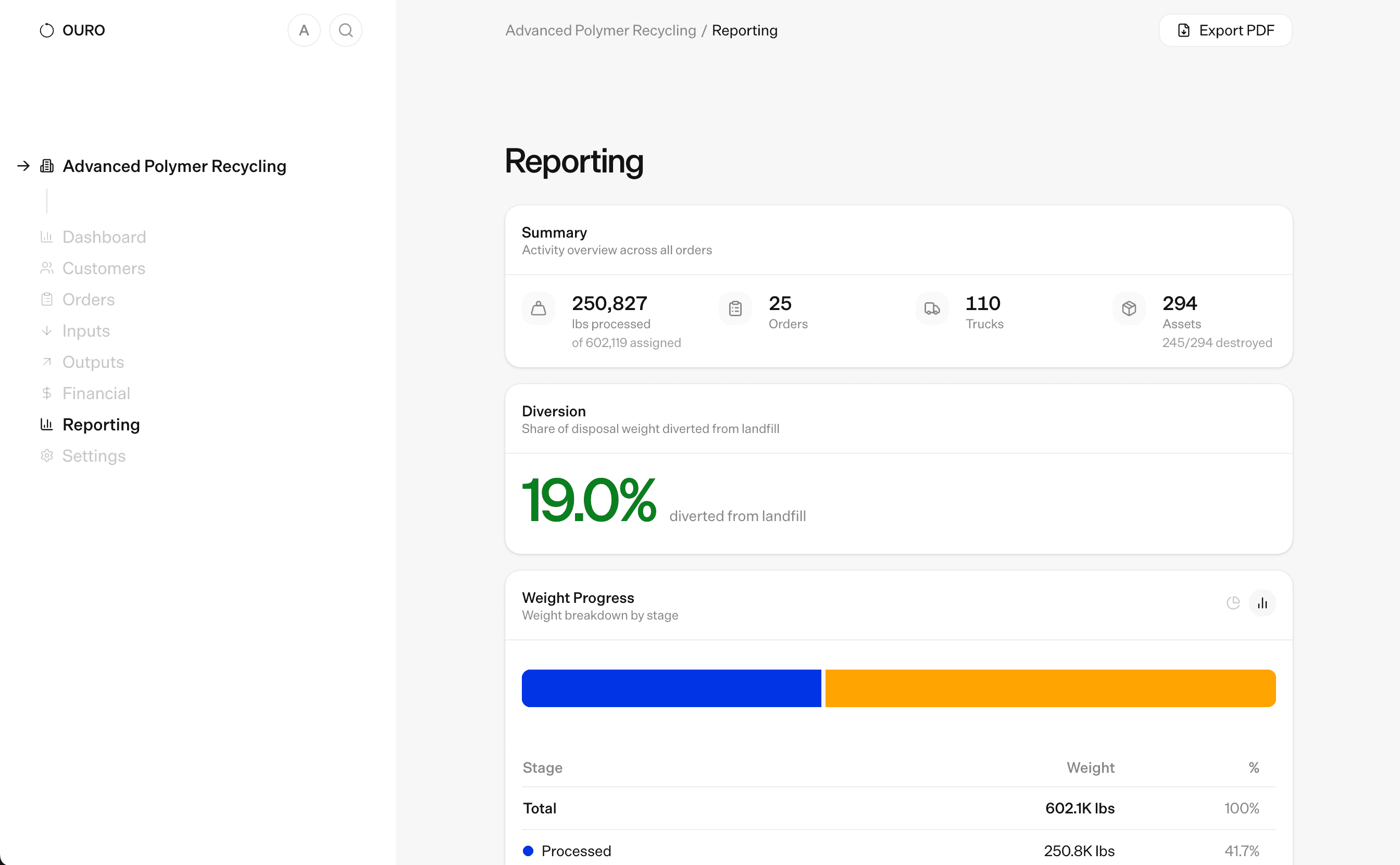
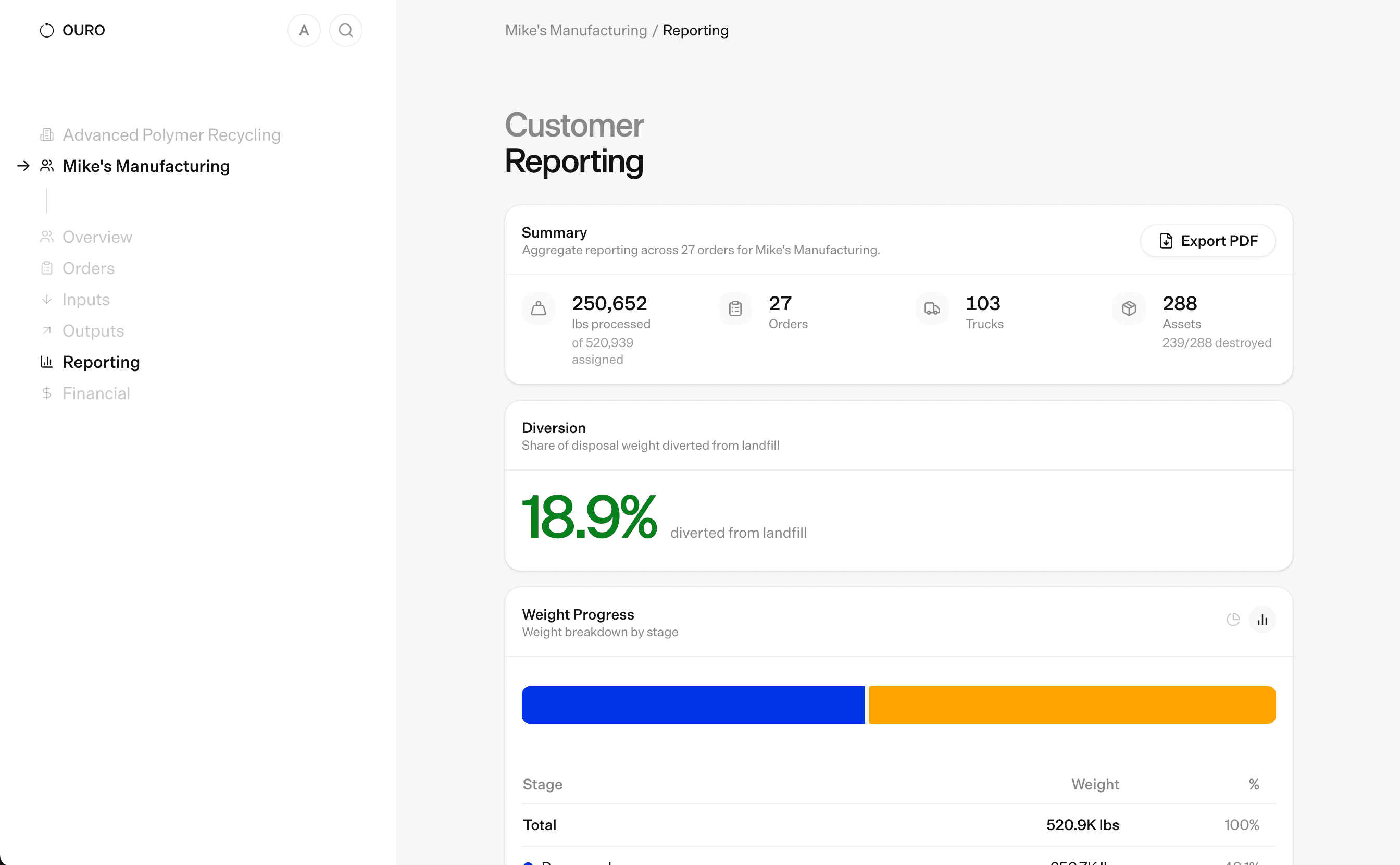
Navigate to the reporting tab at any level of the platform within a customer, an order, a truck, etc. to get information about end of life, material types, and other pieces of data.
Orders & Trucks
Creating New Orders
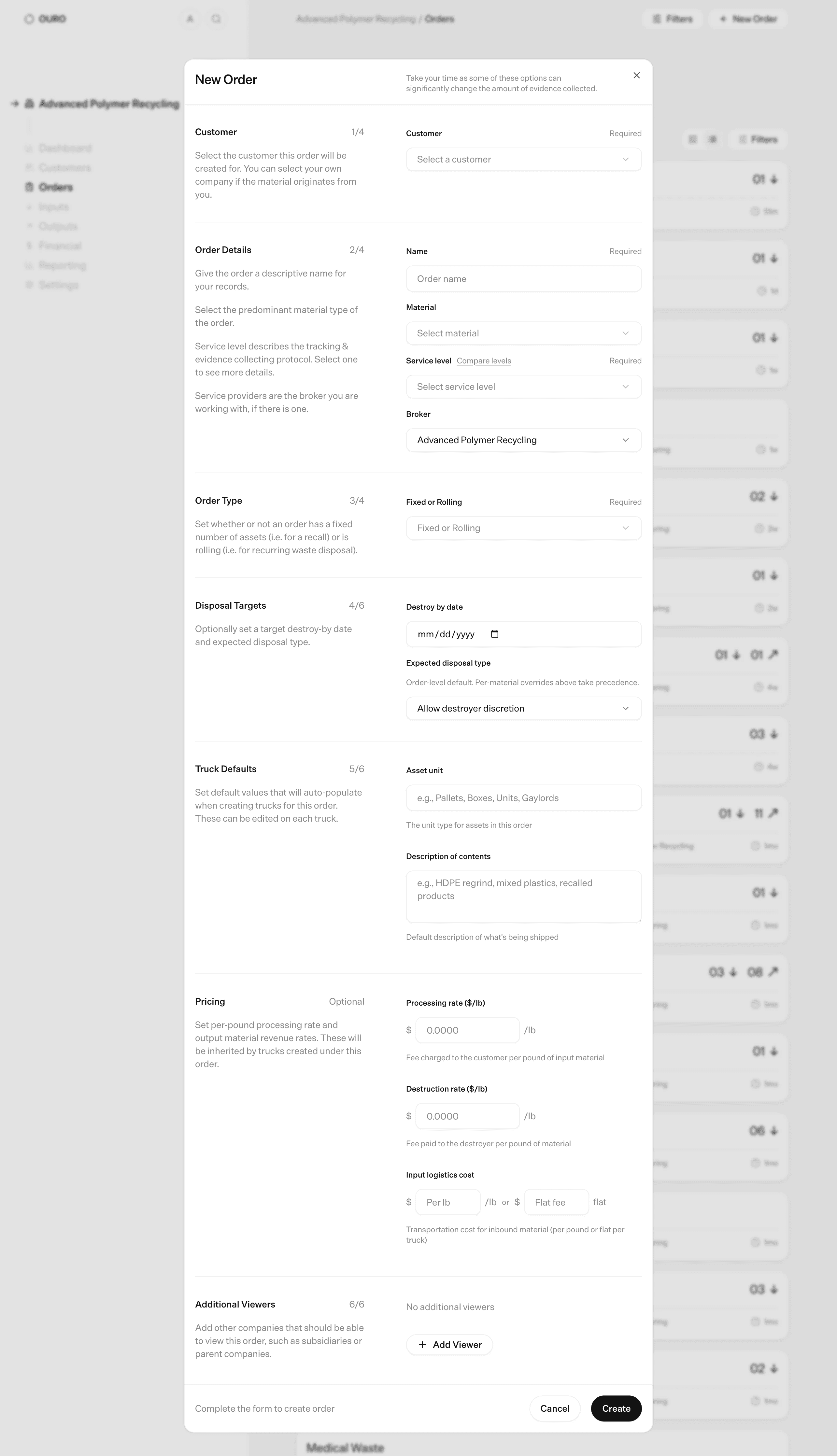
Creating a new order is simple. As a broker + MRF, you can create orders for your customers. Select a company to receive material from and a facility that they are sending things from.
Next, select a fulfillment type. This describes what level of tracking is required for the order. The options are
Basic fulfillment - Just tracking that a load was received and sent out. No videos. For bulk material that is not part of product destruction.
Standard fulfillment - Tracking starts at the destruction facility. No QR codes. There is a set number of objects and at the receipt and destruction we just take a video/photo for each object. No weighing of objects. Once objects are loaded on disposal truck the process is ended.
Premium fulfillment - Tracking starts at the producer of the waste (ie at a walmart facility). Each asset is tagged with a qr code. Objects must be scanned and weighed at each step. Requires a disposal certificate indicating receipt of the material.
Premium Onsite - Tracking starts at your facility. QR codes are attached to the object at your facility. Weights are required. The same as Premium Fulfillment except the qr codes are attached at the MRF rather than the producing facility.
Next, we have to set the order type - rolling or fixed. This indicates whether or not this is continuous and new trucks will be added when they are created, or whether there is a set number of trucks. The former is for something like medical waste where there will be continuously produced waste, and the latter is for something like a recall with a fixed number of entities.
Finally, we select a destroy by date and a disposal type (i.e. incineration, composting etc) for the order. All trucks will inherit these properties.
Creating New Trucks
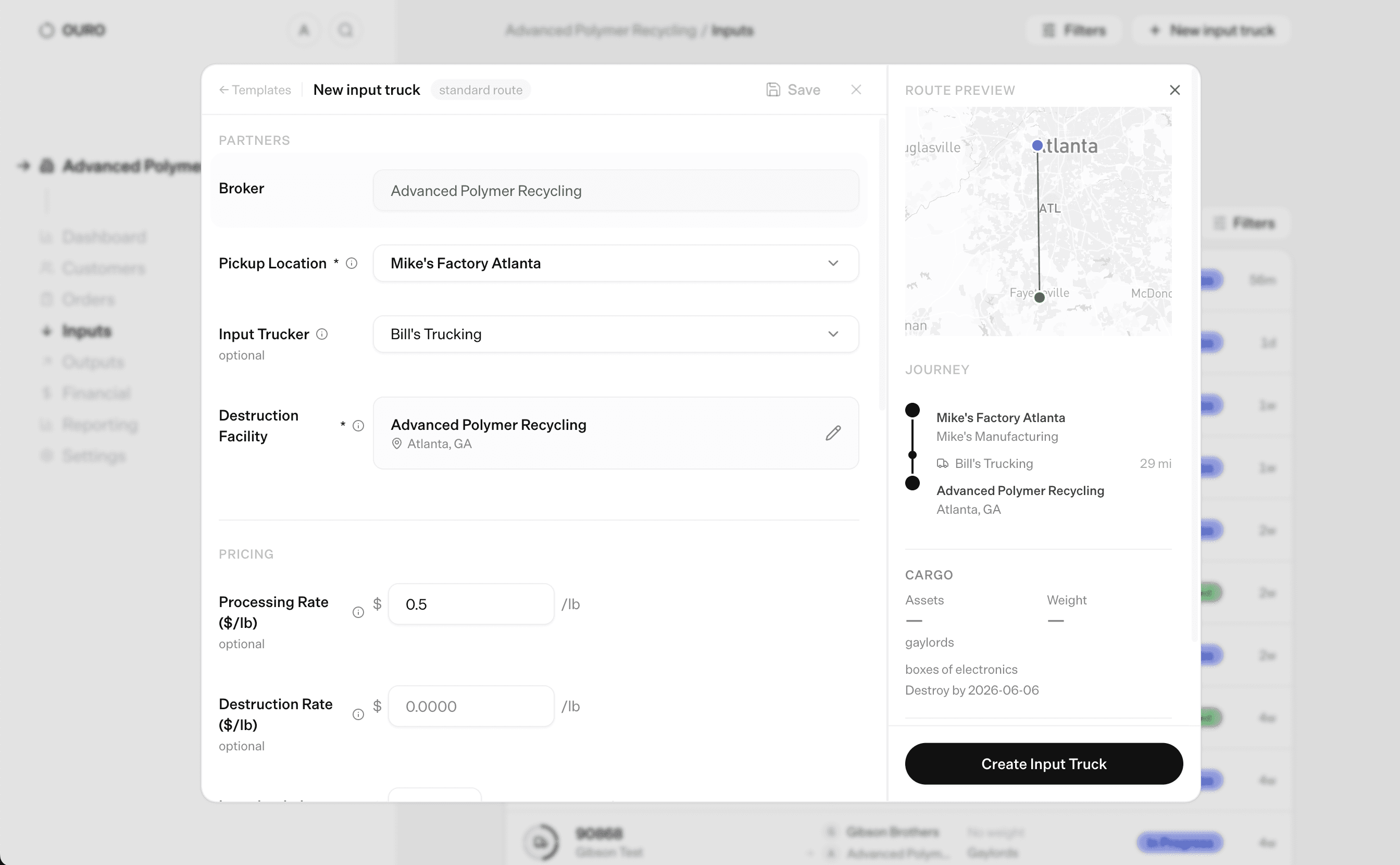
Once an order has been created, trucks can be added to it at any time. A truck represents one load of material, and is the basic unit of the application. To create a new truck, select the order you want to add it to and hit the new truck button. Creating a new truck requires:
Partner Details
Broker: The company that is set as broker the order
Pickup Location: the facility that the material is going to be destroyed at.
Input Trucker: Who is handling the material (defaults to you, not necessary)
Destruction Facility: Select where the destruction will take place.
Pricing Details
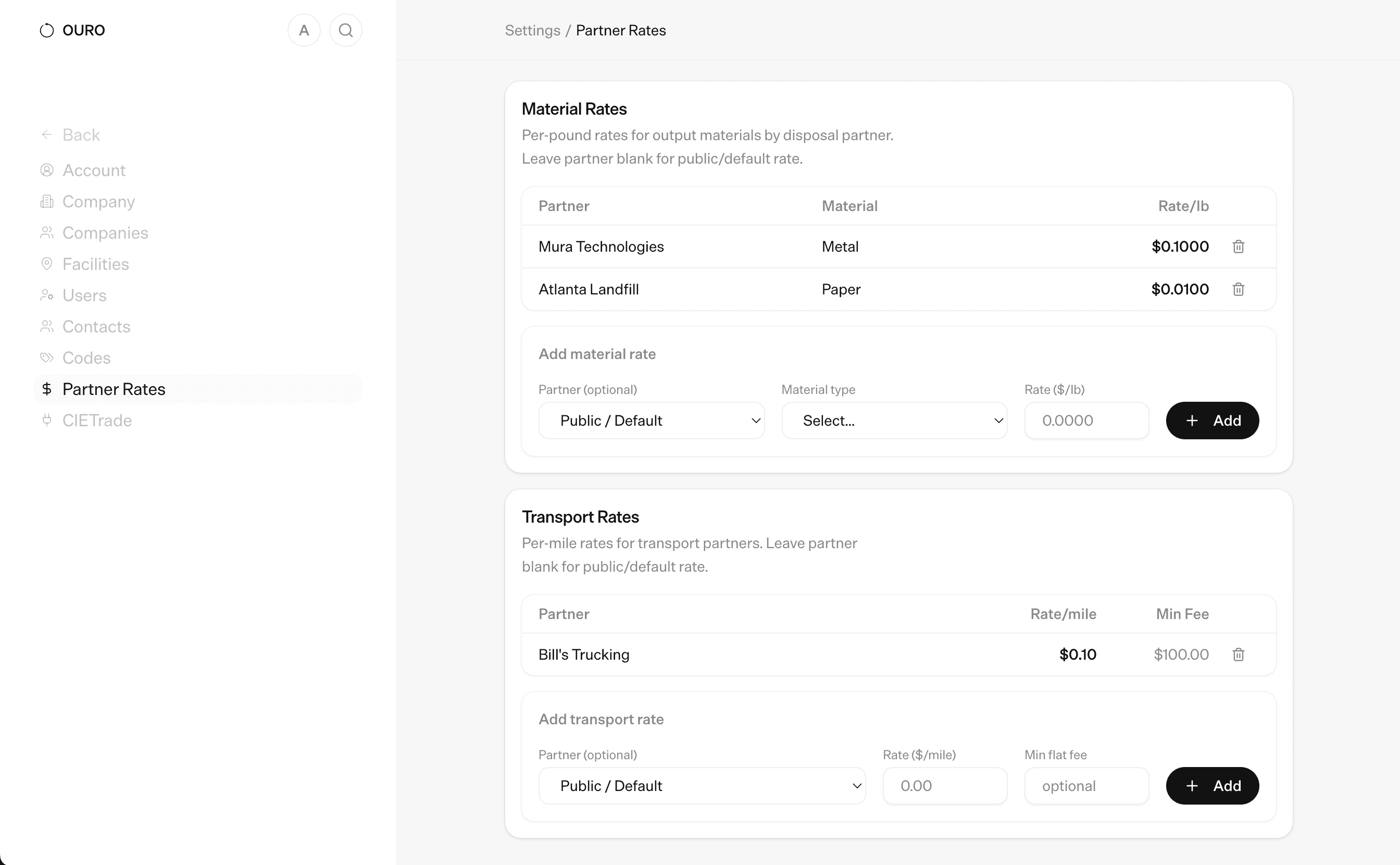
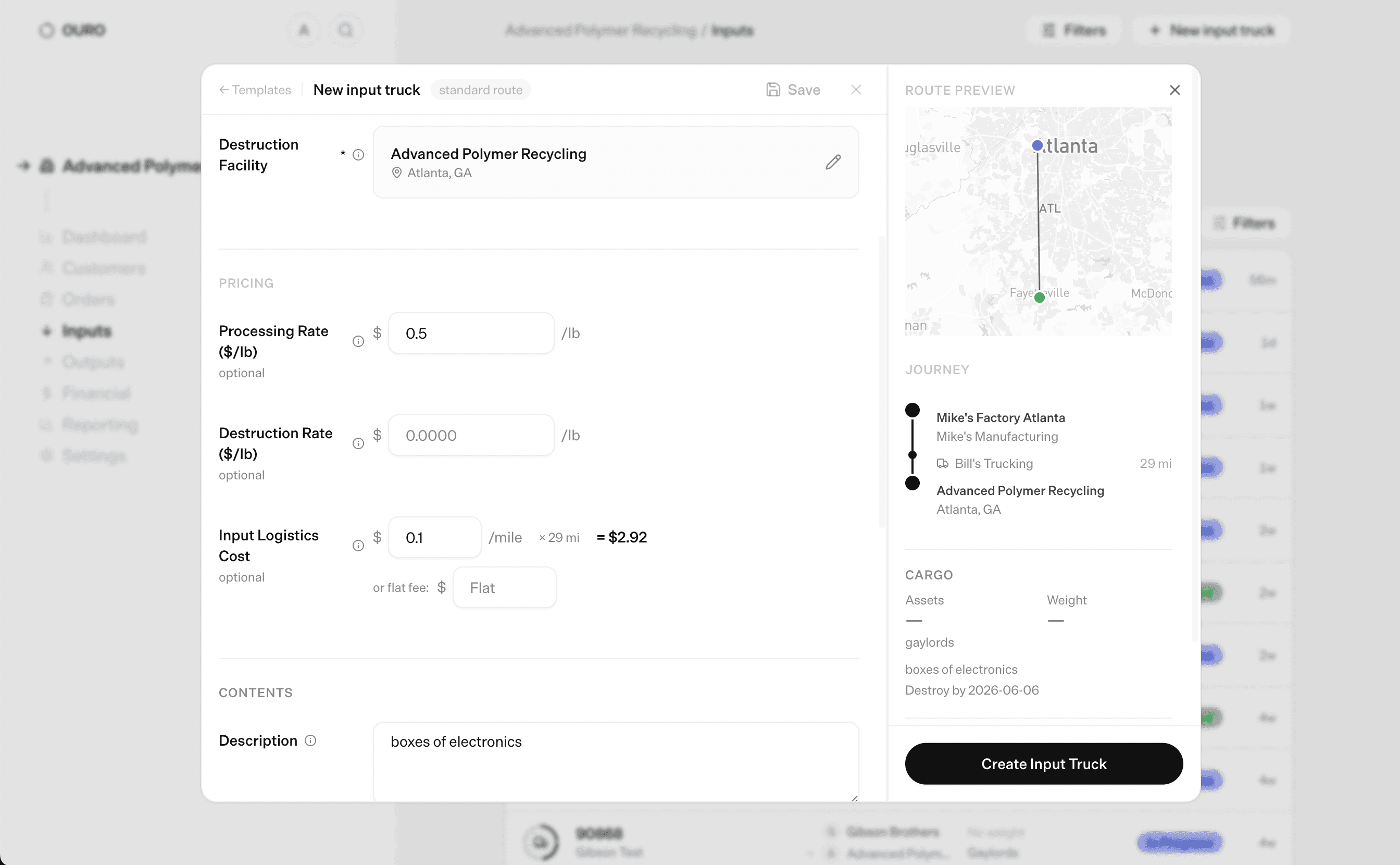
Set pricing on each truck to calculate financial reporting at each level.
Processing Rate
Destruction Rate
Input Logistics Cost
Contents & Bill of Lading Information
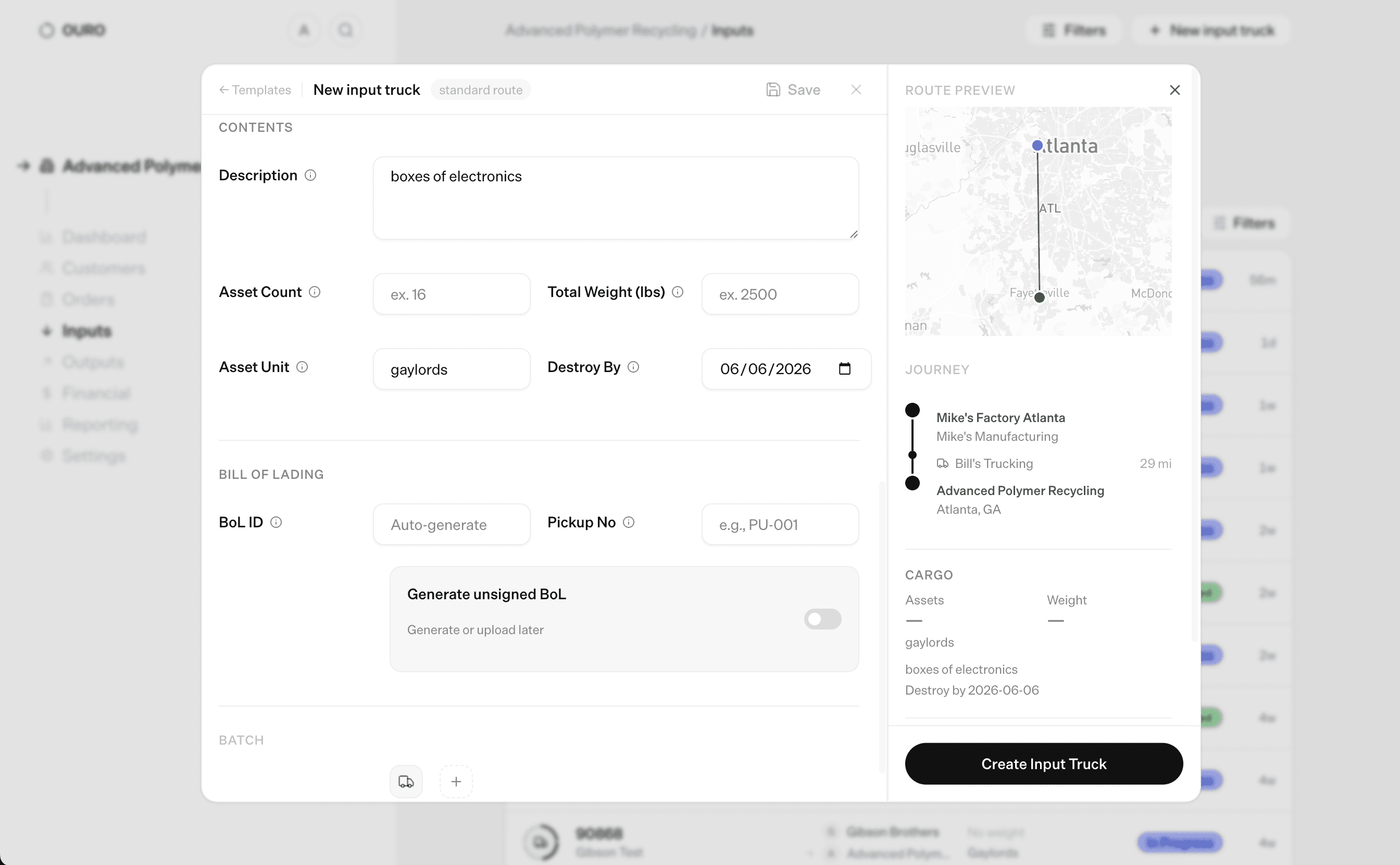
Describe the contents, weight, units and a destroy by date.
The bill of lading can either be uploaded as a pdf or generated through our system. A bill of lading must be created to generate a new truck.
You may also batch create trucks with the same settings or save it as a template for use later.
Monitoring Orders & Trucks
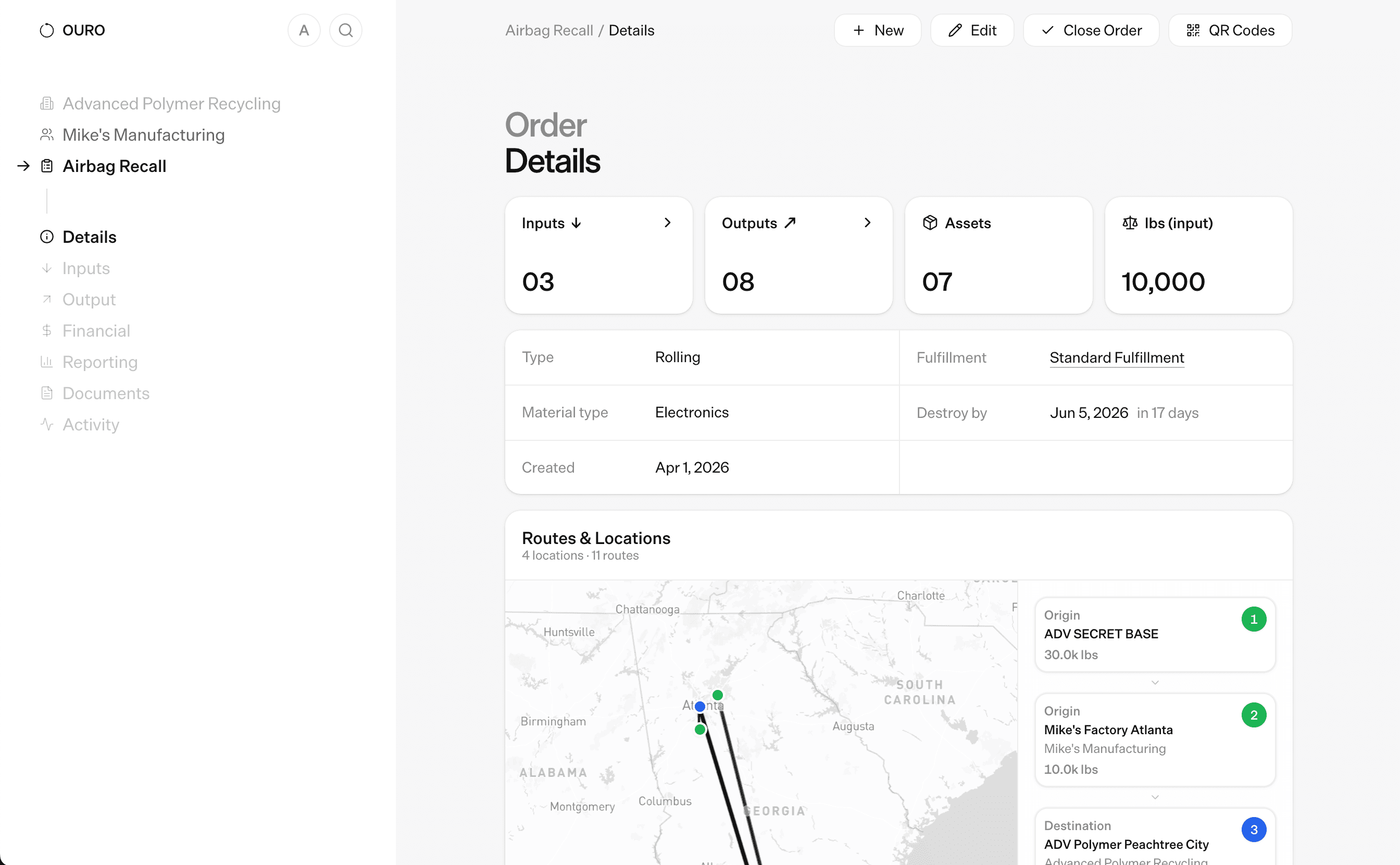
The order page can be used to monitor the status of the trucks that are a part of it. See the example below to observe where the trucks for order 11 are.
Completing Trucks
Trucks are completed on the App, Some fulfillment types may let you complete it on the web app.
Once a truck has been fully destroyed and all images and videos have been properly taken, it is ready to be completed. This requires uploading a set of documents to the system to close the truck.
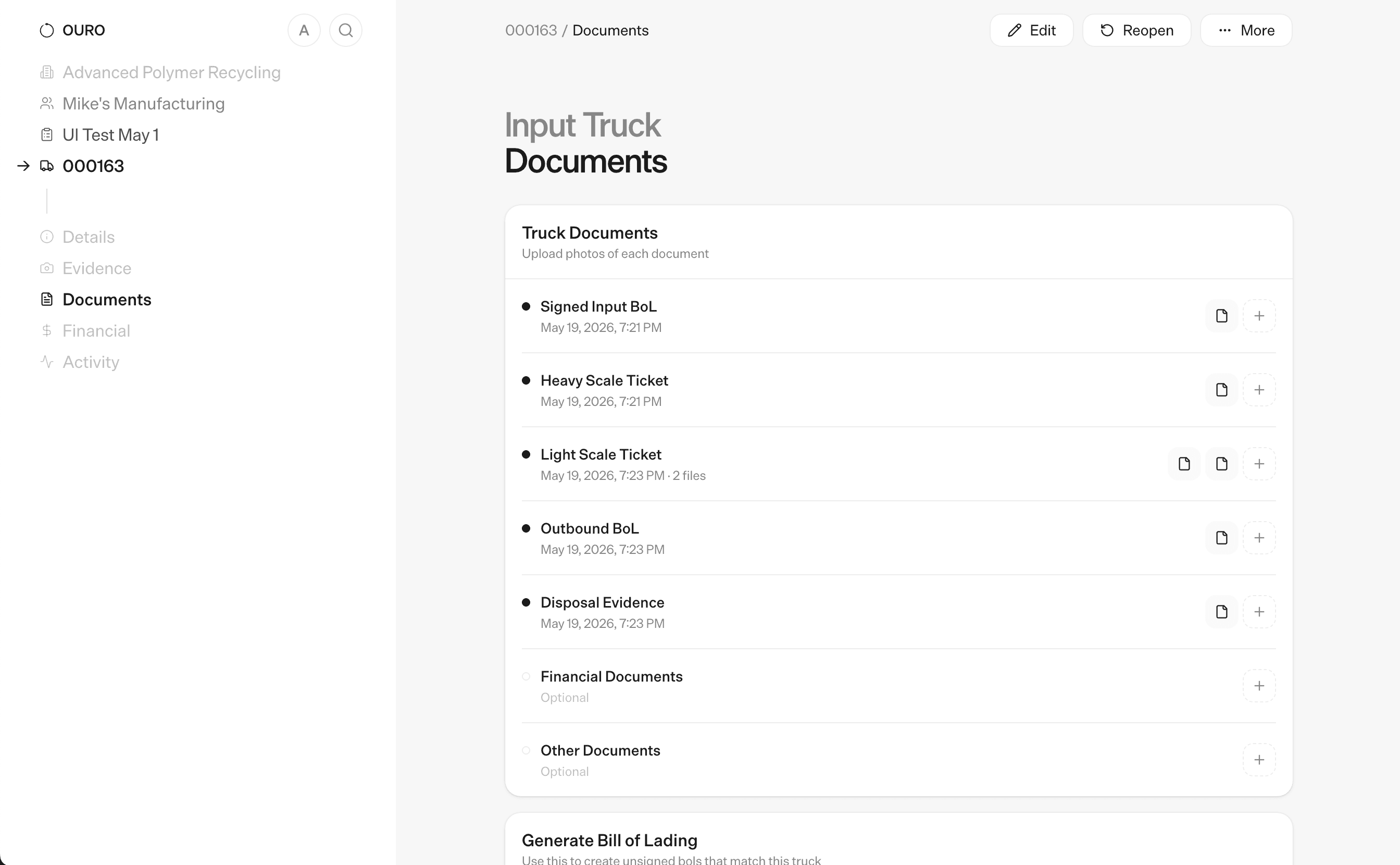
Document 1: Input Bill of Lading
Should be added when truck is created.
Document 2: Output Bill of Lading
This is the bol for when the destroyed material is sent for disposal
Document 3: Scale Ticket
This is the bol for when the destroyed material is sent for disposal
Disposal Certificate
This is a certificate from the disposer signifying that the destroyed material has been received by them and is to be disposed in the proper fashion. Collect this from the disposer and upload it via the documents tab.
Generating Certificates
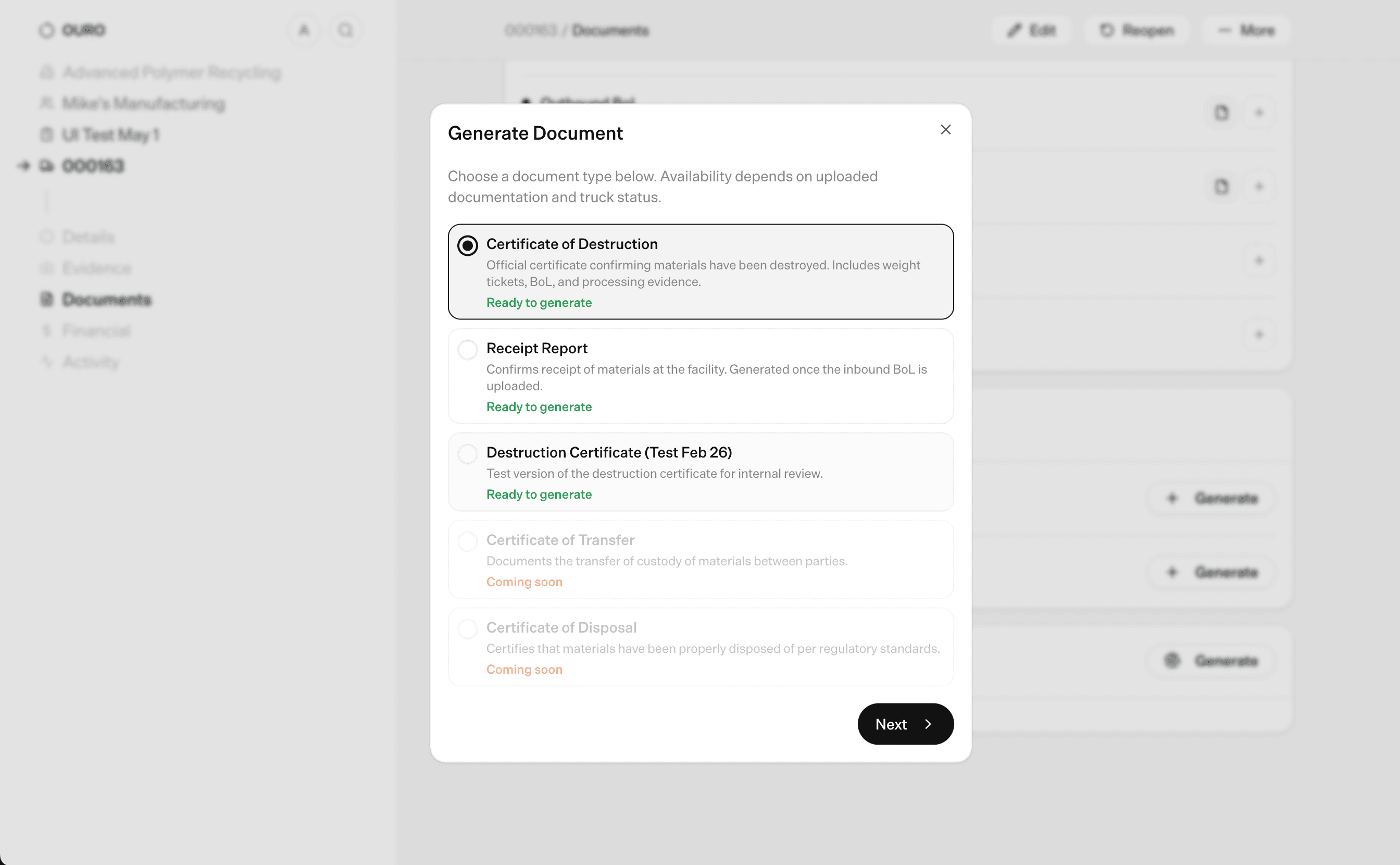
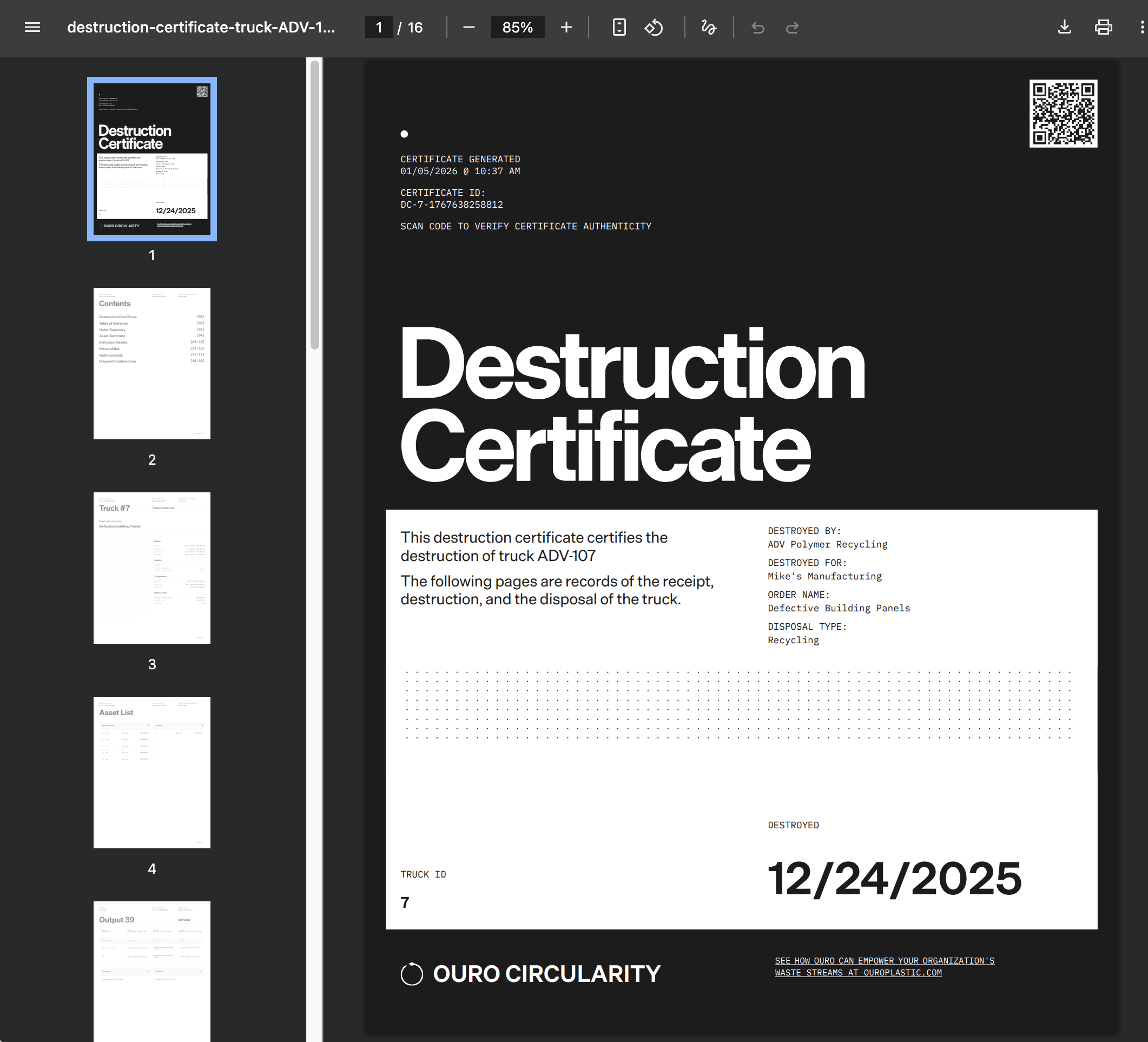
Once all the proper documents have been uploaded and all photos and videos have been collected, the generate certificate button on the documents tab of the truck will become available. Press this to generate a certificate of destruction which can be sent to partners or accessed via the platform by anyone with the credentials to log into these orders/trucks.
There are a variety of certificates that can be created.
Premium Certificate of Destruction
A full scale certificate. this includes evidence of destruction along with any and all documents that have been uploaded. Requires all doucments associated with an order type and destruction evidence.
Basic Certificate of Destruction
Same as a Receipt Certificate except it attests to destruction. Useful if we don't have or require destruction evidence.
Receipt Certificate
Certificate that attests to receipt. Doesn't require any destruction evidence but does require receipt photos.